
A Resilient Backup Strategy for Small Business Success
In this article
As a professional data recovery laboratory, we are often the last resort when a backup fails. We receive drives every day from businesses facing catastrophic data loss - a server RAID array fails, ransomware encrypts everything, or an employee drops the one external hard drive holding the company's financial history. For a small business, this isn't just an IT problem; it's a potential business-ending event.
Building a solid backup strategy isn't about ticking a compliance box. It's about creating a survival plan for your most valuable asset: your data.
Your Backup Strategy Is Your Lifeline
Every day, our lab receives urgent calls from small business owners. Their single backup drive suffered a mechanical failure right after their main server went down. An employee accidentally formatted a critical partition. A ransomware attack encrypted the primary server and the connected network drive they used for backups.
These aren't hypothetical scenarios; they are the daily realities of data recovery. It's a common misconception that catastrophic data loss only happens to large corporations. The truth is, small businesses are frequent victims because they often lack dedicated IT resources, making them far more vulnerable to a single point of failure.

Where the Real Threats Come From
Data loss rarely announces its arrival. It's often sudden and can originate from multiple, unexpected sources. Here’s a look at the most common failure types we diagnose in our lab, highlighting why a multi-layered backup strategy is non-negotiable.
Top Data Loss Threats We See in Our Lab
| Threat | Common Example (MDRepairs Lab Perspective) | How Backups Mitigate the Risk |
|---|---|---|
| Hardware Failure | A RAID 5 array in a small office server experiences a second drive failure during a rebuild. The entire volume becomes inaccessible due to firmware faults or physical media degradation. | An off-site or cloud backup provides a full, independent copy of the data, making the physical RAID failure a recoverable event, not a catastrophe. |
| Human Error | An employee accidentally deletes a crucial client project folder and then empties the Recycle Bin before anyone notices. | Point-in-time recovery from a recent backup (e.g., from the previous night) allows you to restore the exact folder as it was, minimizing data loss. |
| Cyberattacks | Ransomware encrypts every file on the primary server and spreads to a connected USB backup drive, locking the business out of its own data. | An "air-gapped" or offline backup (like a rotated external drive or immutable cloud storage) is isolated from the network and cannot be encrypted by the attack. |
| Physical Damage | An office fire or flood destroys the main computer and the local backup drive stored in the same room. | A geographically separate, off-site backup ensures that a local disaster doesn't wipe out every copy of your data. |
Relying on a single backup method creates a single point of failure. As you can see, each threat requires a different type of protection to be truly effective.
The Real Cost of Doing Nothing
The financial fallout from data loss goes far beyond the invoice for professional data recovery. The numbers are staggering: 93% of businesses that lose data for 10 days or more file for bankruptcy within a year. Think about that. Ten days of downtime can unravel years of hard work.
With small businesses accounting for 44% of U.S. economic activity, the stakes couldn't be higher. A shocking 60% of small companies shut down for good within six months of a major data breach. For a deeper dive into this, the Cloud Backup for Small Business Survival Guide is a great resource.
As a nationwide data recovery service, we often work with clients after their primary and sometimes only backup has failed. The most successful recoveries happen when a business has a multi-layered strategy. When the only backup is on a physically failed device, the pressure is immense.
A solid plan incorporates multiple layers of protection. It means that if one backup fails - and they do - another is ready to go. We see this firsthand with clients who need https://mdrepairs.com/new-york-data-recovery/. The bottom line is simple: you’re not just backing up files; you're backing up the future of your business.
Figuring Out What's Actually Worth Protecting
Before selecting backup software or cloud storage, you must answer a more fundamental question: what data is critical to your business operations? Many small businesses make the mistake of trying to back up everything with the same priority. This approach is not only expensive but inefficient. It treats five-year-old marketing brochures with the same urgency as your live customer database.
The first step is to perform a data inventory. You need to know exactly where your critical information resides.
Where Is All Your Data Hiding?
Your data isn't just sitting on a single server. You need to map every location where important information is stored.
Consider all the places your team works and saves files:
- Servers: This is the starting point, where shared files, internal applications, and core databases likely live.
- Laptops and Desktops: A common blind spot. Key contracts, vital spreadsheets, and client emails often exist exclusively on individual employee workstations.
- Cloud Applications: Your data in Microsoft 365 or Google Workspace is your responsibility. This includes emails, shared documents, and calendar appointments.
- External Drives & USB Flash Drives: Don't forget the external hard drives used for large projects or the USB flash drives your team uses to transfer files.
Once you have a clear map of where everything is, you can start to prioritize it. Financial records and your customer database are mission-critical. That folder of company picnic photos from 2018 is not.
Setting Your Tolerance for Pain: RTO & RPO
With your data mapped, it's time to define your recovery goals using two critical metrics: Recovery Time Objective (RTO) and Recovery Point Objective (RPO). They sound technical, but they answer two simple questions.
- Recovery Time Objective (RTO): How long can we afford to be down? This measures acceptable downtime. Is it an hour? A day? A week?
- Recovery Point Objective (RPO): How much data can we afford to lose? This measures acceptable data loss. Can you lose a day's worth of work? An hour's? Only the last five minutes?
These values directly dictate the type of backup system you need and its associated cost.
A recurring scenario we see in the lab is a business that believes it has a solid backup plan, only to discover it's not aligned with operational reality. A classic example is the company whose "daily" database backup was configured improperly and last ran 36 hours ago. When the server fails, they realize an entire day of transactions has vanished.
Let’s Make This Real: An Online Store
Imagine a small e-commerce shop. It has different types of data, each with a different level of importance.
1. The Live Order Database: This is the absolute lifeblood of the business.
- RPO: Needs to be extremely low - perhaps 15 minutes. Losing more than a few new orders would cause chaos with customers and fulfillment. This requires very frequent, near-continuous backups.
- RTO: Must be aggressive - let's say 1 hour. Every minute the site is down, sales are lost. They need a system that can restore operations quickly.
2. Product Photos & Marketing Content: This content is important but doesn't change every minute.
- RPO: Much more relaxed, maybe 24 hours. Losing a day’s worth of changes to a product description is an inconvenience, not a disaster. A simple nightly backup is sufficient.
- RTO: Less urgent, perhaps 4-8 hours. The business can still function if the marketing team can't immediately access last month's blog images.
By setting these different objectives, the online store can build a smart, layered backup strategy. They can invest in a powerful, high-frequency solution for their critical database while using a more standard, cost-effective cloud backup for less-volatile files. It’s all about allocating resources to mitigate the biggest risks.
Building Your Data Fortress with the 3-2-1 Rule
Once you know what data you need to protect and how fast you need it back, it's time to build the actual system. In the world of data protection, there's a principle that has stood the test of time: the 3-2-1 Rule. We've seen this simple framework save countless businesses from what would have otherwise been fatal data loss events.
Think of it less as a rigid rule and more as a multi-layered defense strategy. It's the foundation of any truly resilient backup plan.
The Brilliant Simplicity of the 3-2-1 Rule
The concept is straightforward, which is what makes it so effective. It’s designed to ensure no single point of failure - a server crash, a fire, or a ransomware attack - can completely wipe you out.
Here's what it means in practice:
- Have at least three total copies of your data. This includes your original, "live" data and at least two separate backups. Redundancy is your best friend.
- Store your copies on two different types of media. You should not rely on a single technology. This could mean having one backup on a local Network Attached Storage (NAS) device and another in the cloud, or an internal server drive and a set of rotated external hard drives.
- Keep one of these copies off-site. This is your defense against a physical disaster. If a fire, flood, or theft hits your primary location, that off-site copy is what allows your business to survive.
This process flow visualizes how identifying and prioritizing your data is the essential first step before implementing a framework like the 3-2-1 rule.
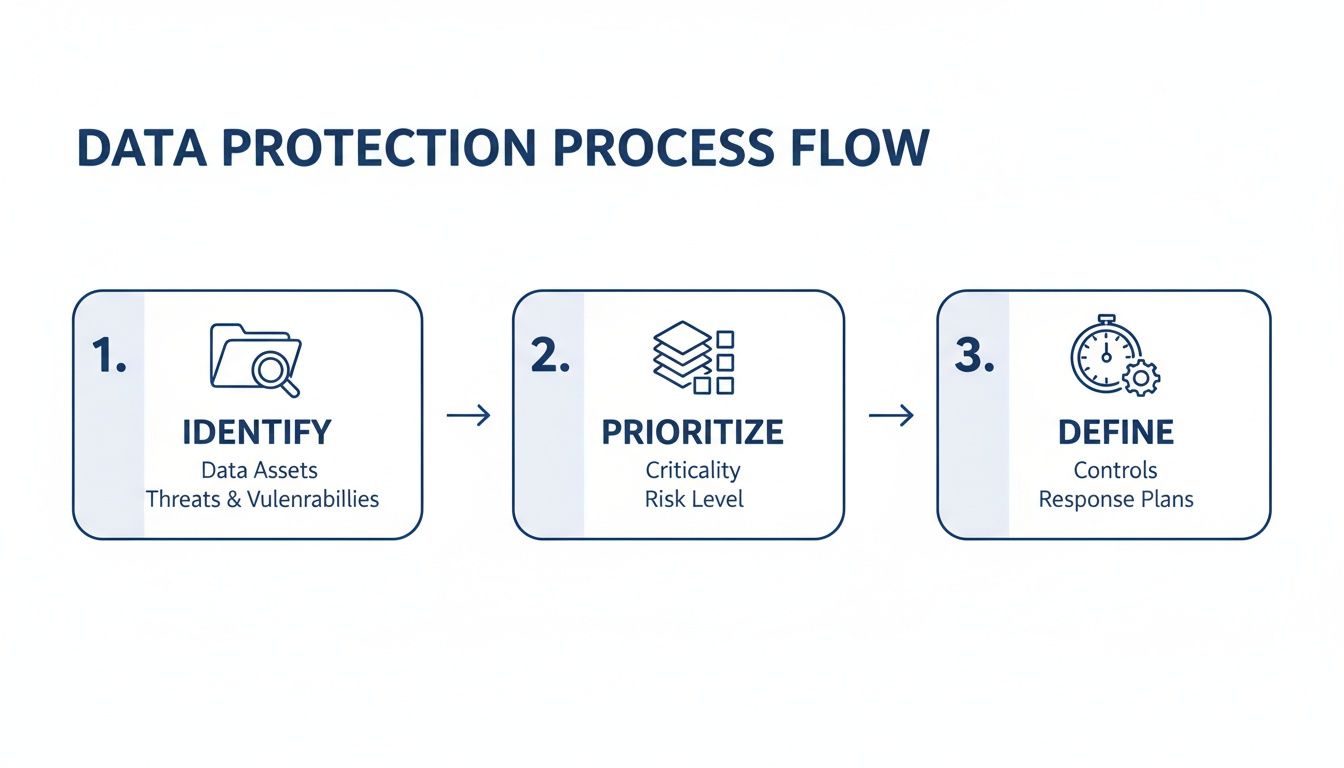
Without this initial groundwork, you’re just backing up everything blindly, which is inefficient and can lead to gaps in your protection.
An Evolution for Modern Threats: The 3-2-1-1-0 Rule
The classic 3-2-1 rule is a fantastic starting point, but cyber threats have evolved. Modern ransomware is sophisticated enough to hunt for and encrypt connected backups. This has led to an important evolution of the rule, which we now recommend as the 3-2-1-1-0 Rule.
It sounds more complicated, but the additions are critical for modern resilience:
- The extra "1" stands for one immutable or "air-gapped" copy. An immutable copy can't be altered or deleted. An air-gapped copy is physically disconnected from the network. In either case, ransomware cannot access or modify it.
- The "0" stands for zero errors. This is a reminder to rigorously test and verify your backups. An untested backup is merely a hope, not a strategy.
We frequently receive drives from businesses whose only backup - sitting on a network-attached drive - was encrypted right alongside their primary server. In those cases, having a truly offline, air-gapped copy would have turned a business-ending catastrophe into a manageable inconvenience.
Let's See This In Action
Imagine a small accounting firm. Here’s what a robust 3-2-1-1 setup might look like for them:
- Original Data (Copy 1): Lives on their primary office server where they work every day.
- On-Site Backup (Copy 2, Media 1): Every night, an automated backup runs to a local NAS device. This is their first line of defense for quickly restoring an accidentally deleted file.
- Off-Site Backup (Copy 3, Media 2): The NAS automatically syncs an encrypted version of its backups to a cloud storage provider like Backblaze B2. This protects them from a fire or theft at the office.
- Offline Backup (The extra "1"): Each Friday, a full backup is made to a high-capacity external hard drive. That drive is then disconnected and stored in a fireproof safe, creating the essential air gap.
This layered approach is your best defense. A single hardware failure or a compromised cloud account won't take down your entire operation. This hybrid model is quickly becoming the standard, as recent backup trends show that relying solely on one method is too risky.
Choosing the Right Media for Your Copies
When setting up your on-site and off-site copies, you have several common options. Each comes with its own set of pros and cons that we see in our lab every day.
Comparing Backup Media for Your Business
| Media Type | Best For | Pros | Cons (Failure Points We See) |
|---|---|---|---|
| External Hard Drive | Simple on-site & air-gapped backups. | Low cost, portable, easy to disconnect (air-gap). | Prone to drops (head crashes), connector damage, and gradual mechanical failure. |
| NAS (Network Attached Storage) | Centralized on-site backup for multiple devices. | Fast local recovery, RAID redundancy for disk failure. | Not immune to firmware corruption, power surges, ransomware, or physical theft if not secured. |
| Cloud Storage | Secure, automated off-site backup. | Accessible from anywhere, protects against local disasters. | Recovery speed is limited by internet bandwidth; risk of account compromise. |
| LTO Tape | Long-term, high-capacity archival. | Extremely durable, long shelf life, excellent for air-gapping. | Higher initial cost for the drive; slower access to specific files (sequential access). |
Ultimately, the best strategy uses a mix of these options to fulfill the 3-2-1-1-0 principle.
If any of these physical devices - like an external drive or a NAS - starts making unusual noises or fails to be recognized, power it down immediately. Continued operation can cause severe media damage. At that point, a professional evaluation is the only safe way to determine if the backup data itself is recoverable.
Putting Your Backup Plan into Action
A great strategy is one thing, but execution is what really counts when disaster strikes. This is the part where your plan moves from a document into a living, breathing part of your business operations. It’s all about picking the right tools, making the process automatic, and locking down security from the get-go.
The first real decision you'll make is what software and hardware you’ll use. The answer really depends on what you're trying to protect. Backing up an entire server is a totally different ballgame than just saving a folder of spreadsheets.
Image-Based vs. File-Level Backups
The type of backup you choose will have a massive impact on how quickly and easily you can get back on your feet. Honestly, most small businesses need a mix of both.
Image-Based Backups: Think of this as a perfect clone of your entire system - OS, software, settings, data, everything. The huge win here is speed. If a critical server dies, you can restore the entire "image" to new hardware and be back up and running in a fraction of the time. This is the go-to for any machine where every minute of downtime costs you money.
File-Level Backups: This is more like a targeted copy of specific files and folders. It’s ideal for things like user documents, project files, or accounting data. The beauty of this approach is its simplicity. If someone accidentally deletes one crucial report, you can grab just that one file in minutes without a massive restore process.
A smart, common setup is using image-based backups for your servers while running file-level backups for individual employee computers. This gives you the best of both worlds: full disaster recovery for your core infrastructure and quick, easy fixes for everyday mishaps.
Automation Is Your Best Friend
In all my years of experience, the biggest point of failure in a backup plan isn't the technology - it's human intervention. We forget. We get busy. We do it wrong. For a small business, a reliable backup strategy must be automated.
Set it and forget it - but always verify. Automation takes the daily "did I remember to run the backup?" question off your plate. But you absolutely must have alerts that tell you if a backup succeeded or failed. A silent failure is one of the most dangerous things in IT.
Your schedule should match how often your data changes. A good starting point might look like this:
- Critical Servers: Run daily incremental backups. These are quick because they only copy what's changed since the last backup, letting you capture new data throughout the workday.
- Workstations: A full weekly backup is often enough, usually scheduled for a Friday night or over the weekend so it doesn’t slow anyone down.
For businesses running virtual servers, you’ll want to look at specialized virtual machine backup solutions. These tools are built to handle the unique demands of virtual environments, making the process much more efficient.
Security Isn't an Optional Extra
Let's be blunt: your backups are a complete copy of your company's most valuable information. Leaving them unencrypted is like leaving the keys to your office taped to the front door. I’ve seen cases where a company survived a server crash only to face a catastrophic data breach because someone stole an unencrypted backup drive.
Security needs to be baked in from the start, not added as an afterthought.
There are two places where encryption is completely non-negotiable:
- Encryption in Transit: This protects your data while it's moving - either across your office network to a storage device or over the internet to the cloud. It’s like sending cash in an armored truck instead of an open envelope.
- Encryption at Rest: This keeps the data scrambled and unreadable wherever it’s stored. If a backup hard drive gets lost, stolen, or falls into the wrong hands, the data on it is just gibberish without the key.
Beyond encryption, you need to be strict about who can access your backups. Limit the credentials for managing, changing, or restoring data to only a few trusted people. This simple step is a powerful defense against both malicious insiders and external attackers who might try to delete your only safety net.
The Critical Step Everyone Skips: Testing Your Backups
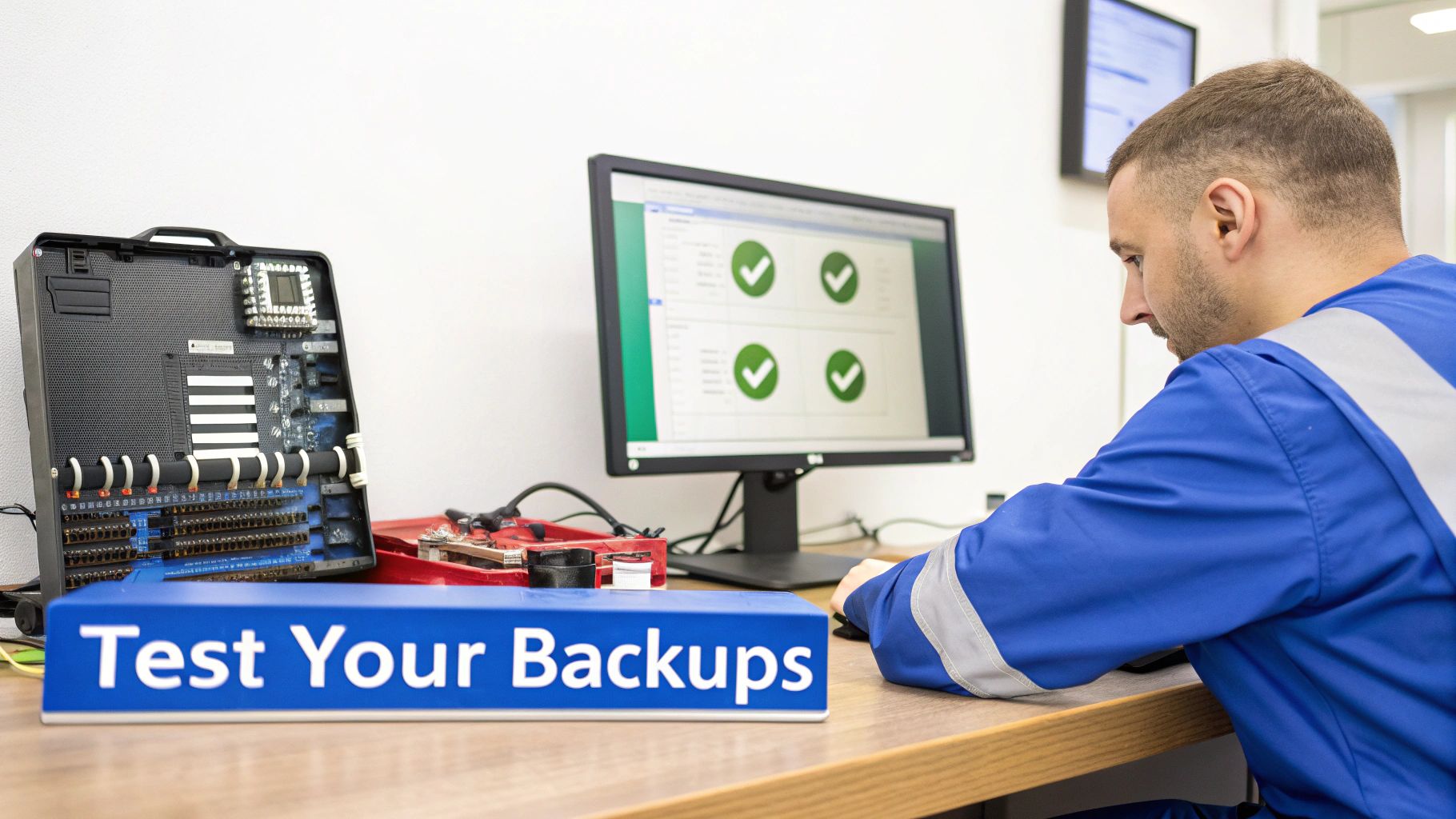
In our data recovery lab, we have a saying: an untested backup is just a hope. It's a hard lesson we've seen countless businesses learn. They believed they were protected, only to discover during a crisis that their backups were corrupted, incomplete, or pointed to the wrong data. It's a gut-wrenching scenario that turns a recoverable event into a potential catastrophe.
This is why regular, structured testing is a non-negotiable part of any serious backup strategy for a small business. The goal isn't just to have backups; it's to have proven, recoverable backups. That distinction means the difference between a minor hiccup and a business-ending disaster.
Different Drills for Different Scenarios
Testing shouldn’t be a single, massive event. A smarter approach involves running different types of recovery drills, each designed to check a specific part of your strategy. Think of it like a fire drill - you practice various escape routes to ensure everyone knows what to do, no matter where the fire starts.
File-Level Restore: This is your most frequent and basic check. Can you quickly restore a single file or folder that was "accidentally" deleted? This simple test confirms your backup files are not corrupt and that the recovery process is straightforward.
Application-Level Restore: A step up in complexity. Here, you would restore an entire database or a critical application (like accounting software) into a separate test environment to ensure it functions correctly.
Full-System Recovery Drill: This is the most comprehensive test. You simulate a total server failure and attempt to restore the entire system from scratch on a new machine (or a virtual machine). This is the ultimate validation of your RTO and confirms your bare-metal recovery process actually works.
Establishing a Realistic Testing Schedule
The main reason businesses skip testing is because it feels like a monumental task. A practical schedule makes it manageable.
Here’s a sensible cadence we recommend:
- Monthly: Perform a few random file-level restores. It takes only a few minutes and provides immediate peace of mind.
- Quarterly: Conduct an application-level restore for one of your most critical business systems.
- Annually: Execute a full-system recovery drill. It’s more involved, but it’s the only way to be certain your entire plan holds up under pressure.
Document every test: what you tested, the steps taken, how long it took, and any issues encountered. This log becomes an invaluable feedback loop for improving your strategy.
From our perspective in the lab, dealing with physically failed HDDs, SSDs, and RAID systems daily, the need for proven backups is painfully clear. We've seen businesses lose everything because their only backup was on a drive that suffered a head crash. This is precisely why having multiple, tested copies is so vital.
The stakes are always high, whether we're recovering data from NAND degradation on an SSD or a seized motor in a hard drive. The hard reality is that an alarming 33% of company folders lack any protection at all, leaving massive vulnerabilities. This is why hybrid backup strategies - blending the speed of local backups with the safety of offsite copies - are becoming the standard for small businesses. You can find more eye-opening data protection statistics on 99firms.com. This approach avoids the single points of failure we see every day, using local copies for quick restores from accidental deletes and offsite or immutable copies to defend against major disasters like fires and ransomware.
What To Do When Your Backups Fail
Even the most meticulously planned backup strategy can have a weak link: the physical backup media itself. We see this scenario frequently. A business believes it is protected, only to discover the external drive with their sole off-site backup was dropped, their NAS RAID array crashed, or a silent logical error has been corrupting their files for months.
This is the nightmare scenario where your safety net snaps, and professional data recovery becomes your absolute last resort.
When your backup device is physically damaged or inaccessible, the situation is critical. Trying to use data recovery software is not only ineffective but actively harmful. These programs are designed for simple logical issues, like accidentally deleted files on a perfectly healthy drive. They cannot fix mechanical, electrical, or firmware failures and will almost certainly make a bad situation worse by causing further media degradation.
The Single Most Important First Step: Stop Everything
If your backup hard drive, SSD, or RAID system exhibits signs of failure, what you do in the next few minutes can mean the difference between a successful recovery and permanent data loss.
Watch for these clear warning signs:
- Strange Noises: Any clicking, grinding, or buzzing from a hard drive indicates a severe internal mechanical failure.
- Not Detected: The computer does not recognize the device, or it takes an unusually long time to appear.
- No Signs of Life: The drive shows no activity - no lights, no sounds, no vibration.
If you notice any of these symptoms, power the device down immediately and do not turn it back on. Every second it runs, you risk the read/write heads crashing into the platters, literally scraping away the magnetic layer that holds your data. This causes permanent, irreversible data loss.
Do not attempt to fix it yourself. The only safe path forward is to have the device professionally evaluated in a data recovery lab.
Our nationwide mail-in diagnostics service provides a risk-free way to understand the exact nature of the failure. We'll assess your device in a Class 100 cleanroom - a specialized environment required for any internal drive work - to determine if your critical backup data can be recovered. You can see how we handle these complex situations for businesses needing California data recovery services.
When your backup fails, expert help isn't just an option; it's your lifeline.
Answering Your Top Backup Questions
We get these questions all the time from small business owners trying to get their backup strategy right. Here are some straightforward answers based on what we see in our data recovery lab every day.
How Often Should I Be Backing Up My Data?
This comes down to your Recovery Point Objective (RPO): how much work are you willing to lose and redo?
For critical data like accounting files, customer databases, or point-of-sale systems, you should back up at least daily, if not more frequently. For less dynamic data, like marketing assets or archived projects, a weekly full backup combined with daily incremental backups is an efficient approach.
Regardless of the schedule, automation is non-negotiable. Manual backups are easily forgotten, and that's precisely when disasters tend to strike.
Is Just Using the Cloud Good Enough?
Relying solely on the cloud for backups introduces a single point of failure. We've seen cases involving cloud provider outages, compromised accounts, or accidental deletions that sync across all devices, effectively wiping out the data.
A robust strategy requires redundancy, following the 3-2-1 rule:
- Keep a local backup on a NAS or external drive for fast, on-site recovery from common issues.
- Use the cloud as your secure, off-site copy to protect against local disasters like fire, flood, or theft.
What’s the Real Difference Between a Backup and an Archive?
This distinction is important. A backup is a live, operational copy of your current data. Its purpose is disaster recovery - to restore business operations quickly after an incident like a server crash or ransomware attack.
An archive is a long-term repository for static, inactive data that must be retained for legal, regulatory, or compliance reasons. You restore from a backup; you retrieve from an archive.
Help! My External Backup Drive Is Making a Clicking Noise. Is My Data Gone?
First and foremost: unplug the drive immediately. That clicking sound, often called the "click of death," indicates a severe mechanical failure. The read/write heads are likely damaged and may be physically striking the data platters. Continued operation will cause irreversible scratching and data loss.
Do not, under any circumstances, run data recovery software on a clicking drive. Software can't fix a physical problem, and trying will only make the damage worse, potentially making recovery impossible.
This scenario underscores why having more than one backup is critical. When a drive fails physically, it must be opened in a professional cleanroom environment for recovery. For anyone needing assistance, our lab handles cases from across the country, including specialized Texas data recovery services.
When a backup drive fails, the only safe move is to get a professional diagnosis. At MDRepairs, our nationwide mail-in service can pinpoint the problem and tell you what's recoverable, all backed by a no data, no charge guarantee. Start your free quote at https://mdrepairs.com.
How MDrepairs can help
Real cases like this come through our New Jersey lab every week. If you are dealing with one now, start here.
- Data Recovery Services Every device and failure type, recovered in our New Jersey lab. Learn more
- Hard Drive Data Recovery Mechanical, firmware and logical HDD recovery on every brand. Learn more
- RAID Data Recovery Array reconstruction for RAID 0/1/5/6/10, NAS and servers. Learn more
- Mail-In Data Recovery Free insured shipping both ways, anywhere in the US. Learn more


