
A Data Recovery Lab's Guide on How to Avoid Data Loss
In this article
The most powerful defense against data loss is a simple but highly effective strategy: the 3-2-1 backup rule. It’s the gold standard for a reason. The concept is to keep three copies of your data, store them on two different types of media, and ensure one of those copies is kept offsite.
From our perspective as a data recovery lab, we can tell you with certainty: every single storage device - no matter how expensive or reliable - will eventually fail. It's not a possibility; it's an inevitability. Proactive backups are the only way to ensure that when it happens, a potential catastrophe is merely an inconvenience.
The Uncomfortable Truth About Data Loss
Here at MDRepairs, we are on the front lines of digital disasters every day. We recover data from physically damaged hard drives, failed SSDs, and complex RAID systems. While our lab is equipped to handle these critical situations, the best advice we can offer is how to avoid needing our services in the first place.
Data loss can be devastating, whether it’s years of irreplaceable family photos on a clicking hard drive or the critical financial records of a business locked on a failed RAID array. This guide is built from the lessons learned from thousands of real-world recovery cases. It is a toolkit to shift your approach from worrying about data loss to actively preventing it.
Why Prevention Is Not Optional
It’s easy to assume your hardware will continue to function perfectly. But the reality is that mechanical wear, sudden power surges, firmware corruption, and simple accidents are always factors. Relying on a single device to hold important files is a significant gamble.
The numbers are stark. One recent report revealed that in the last year alone, 67.7% of businesses suffered significant data loss. For small businesses, the situation is even more dire - an astonishing 60% are at risk of closing within six months of a major data disaster. You can read the full research about these data loss statistics.
The good news? Most data loss is preventable with a simple, automated backup habit.
The 3-2-1 Rule Explained
The 3-2-1 backup strategy is widely adopted by IT professionals because it creates layers of redundancy that can withstand almost any type of failure. It is a straightforward concept that anyone, from a home user to a large corporation, can implement.
Let’s break down the components.
- Three Copies of Your Data: This includes the original data (on your laptop, for example) plus at least two complete backups.
- Two Different Media Types: Do not store all copies on the same type of device. Using different kinds of storage protects you if a specific technology fails. For example, keep one backup on an external hard drive and another in the cloud.
- One Offsite Copy: This is your ultimate safeguard. An offsite backup protects you from physical disasters like fire, flood, or theft that could destroy all devices in a single location.
A simple table can help visualize this strategy.
The 3-2-1 Backup Rule at a Glance
This table breaks down the industry-standard backup strategy into its core components, helping you see how it all fits together for maximum data protection.
| Component | What It Means | Practical Example |
|---|---|---|
| 3 Copies | Your original data plus two duplicates. | The photos on your computer (Copy 1), a backup on an external drive (Copy 2), and another backup in the cloud (Copy 3). |
| 2 Media Types | Using at least two different storage technologies. | An external solid-state drive (SSD) and a cloud storage service like Backblaze or iDrive. |
| 1 Offsite Copy | A copy stored in a separate physical location. | The cloud backup is inherently offsite. Alternatively, an external drive stored at your office, a friend's house, or in a safe deposit box. |
By following this simple structure, you build a safety net that is resilient to hardware failure, accidents, and even localized disasters.
We regularly receive drives at our lab from clients who thought RAID was a backup, only to suffer a multi-drive failure. A single offsite copy would have turned a potential business-ending catastrophe into a minor inconvenience. This is why the 'one offsite copy' rule is non-negotiable for anyone with data they cannot afford to lose.
This framework is the absolute foundation of a solid data protection plan. It doesn't matter if you're a photographer with a corrupted SD card or an IT manager responsible for business continuity - this principle is the first and most important step.
If you're already facing a data emergency, the most critical step is to power down the device immediately and seek a professional evaluation. Our lab, MDRepairs, provides expert Texas data recovery services and helps clients across the United States.
Building Your Data Fortress with the 3-2-1 Backup Strategy
If there’s one piece of advice we give more than any other, it’s this: follow the 3-2-1 backup rule. This isn't just a best practice; it's the gold standard for protecting your data from nearly every failure scenario imaginable. We see the aftermath of incomplete backup strategies every day, and a solid 3-2-1 implementation would have prevented most of them.
Think of it as a layered defense. A single backup is a single point of failure. The 3-2-1 approach creates genuine redundancy, ensuring that no single event - whether it's a mechanical hard drive failure, firmware corruption, or a natural disaster - can destroy your files permanently.
Here’s a great visual that breaks down this simple but powerful concept.
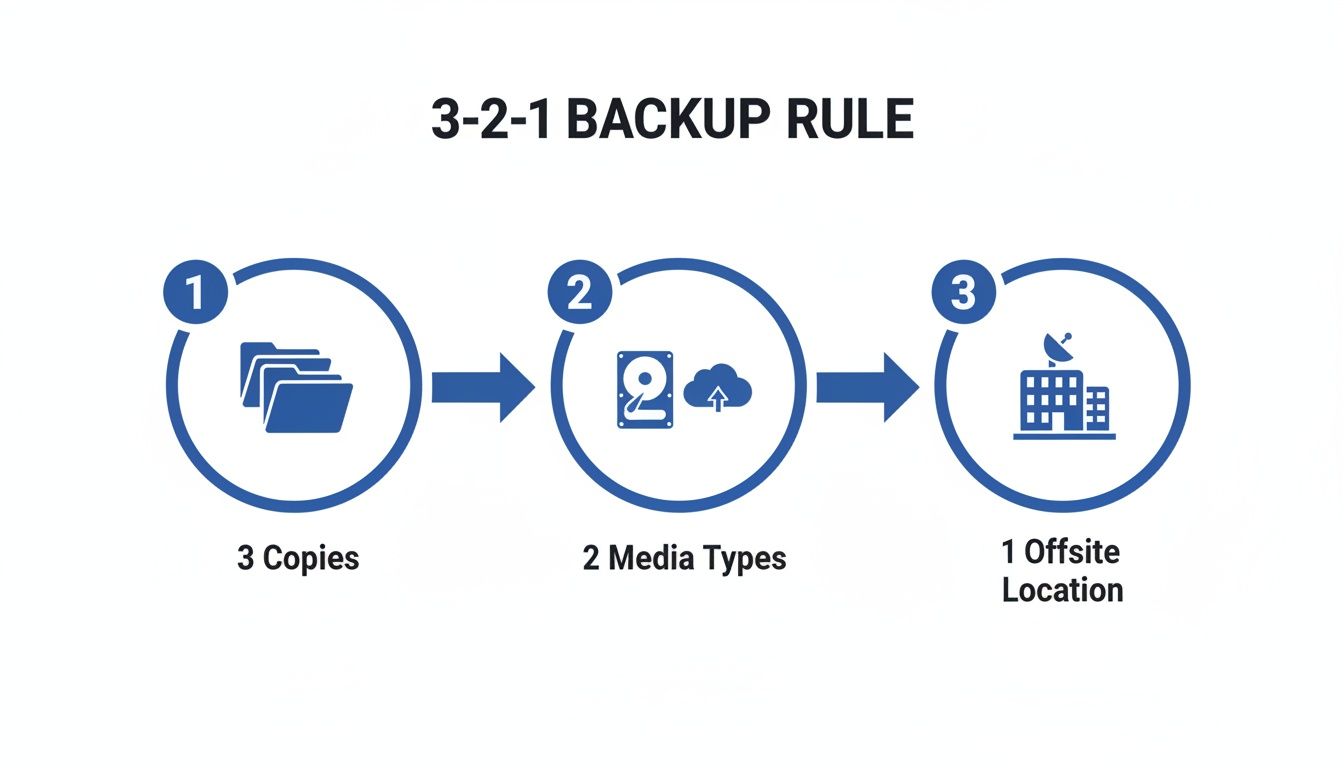
It’s all about having multiple copies, on different kinds of storage, with one of them located somewhere else entirely.
Three Copies: Your First Line of Defense
First, you need to have three copies of your important data. This includes the original file you work with every day, plus two separate backups.
Why three? The probability of three independent copies failing simultaneously is astronomically low. If your main computer drive fails, you have two backups. If one of those backups is discovered to be corrupt, you still have another. We’ve had clients mail in a dead primary drive and a failed external backup drive that were both damaged by the same power surge. A third, offsite copy would have turned a disaster into a minor inconvenience.
Two Different Media Types
The next layer of protection is storing your backups on at least two different types of media. This simple rule insulates you from technology-specific failures. If you back up everything to two identical external hard drives and that specific model has a widespread firmware bug, both backups are at risk.
A more robust approach looks like this:
- A Local Physical Backup: This is your primary source for quick restores. It could be an external hard drive (HDD), a faster solid-state drive (SSD), or a central Network Attached Storage (NAS) device.
- An Offsite Cloud Backup: Here, your files are stored on a completely different medium - the professionally maintained server infrastructure of a cloud provider.
By diversifying your storage media, you create a much stronger defense. An electrical event that damages electronics in your home or office cannot touch the data stored safely in the cloud.
The most difficult cases we see are those where a simple backup would have provided a complete solution. A photographer once sent us a failed SSD containing an entire wedding shoot. Their only backup was on an external HDD that had been physically dropped a month earlier. A cloud backup, costing only a few dollars a month, would have turned a high-stakes, professional lab recovery into a simple download.
One Offsite Copy: The Ultimate Safety Net
Finally, and this is the component people often neglect, you must keep one copy offsite. This is your safeguard against a localized catastrophe. An offsite backup is simply a copy of your data that resides in a completely different physical location.
Consider the risks: a fire, flood, or burglary could easily destroy your computer and any local backups sitting next to it. Without an offsite copy, you would lose everything.
You have two main options for maintaining an offsite copy:
- Cloud Storage: This is the easiest and most reliable method for most users. Services like Backblaze, iDrive, or Carbonite work in the background, automatically syncing your important files to their secure servers.
- Physical Drive Rotation: This traditional method is also effective. You keep an external drive at your office, a relative’s house, or a safe deposit box. The key is to bring it to your primary location regularly for updates, swapping it with another drive that then goes offsite.
Choosing Your Local Backup Media
For your local copy, the right device depends on your budget, capacity needs, and how you use your data.
| Media Type | Pros | Cons | Best For |
|---|---|---|---|
| External HDD | High capacity for a low cost, widely available. | Slower than SSDs, vulnerable to physical shock from drops. | Archiving large files like video libraries and full system images. |
| External SSD | Extremely fast, durable with no moving parts. | More expensive per gigabyte than HDDs. | Backing up working files, operating systems, and data needing quick access. |
| NAS System | Centralized storage for multiple devices, often includes RAID redundancy. | Higher initial cost and more complex to set up. | Households or small businesses needing a central file server and backup hub. |
No matter which hardware you choose, automation is critical. Manually copying files is prone to human error and inconsistency. Both Windows (File History) and macOS (Time Machine) have excellent built-in tools for automating backups to an external drive.
By putting the 3-2-1 strategy into practice, you build a fortress around your digital life. If a drive fails or a disaster strikes, you will have a clear path to restoration. And if you find yourself in a situation where all backups have failed, our nationwide mail-in diagnostics can provide a professional assessment of what is recoverable.
Protecting Your Devices from Common Failures
A solid backup strategy is your last line of defense, but preventing the initial failure is the best way to avoid a data disaster. This means understanding the hardware you rely on.
In our lab, we've seen every type of failure imaginable across all storage media - from HDDs and SSDs to RAID systems and smartphones. Each device has its own unique failure points. The slow, grinding death of a hard drive is very different from the sudden, silent failure of an SSD. Knowing how to care for your specific hardware is a critical part of keeping your data safe.
Traditional Hard Drives (HDDs)
A hard drive is a marvel of mechanical engineering, with read/write heads floating nanometers above rapidly spinning platters. This mechanical nature is also its greatest weakness. The vast majority of HDD failures we see are physical in nature.
A drop, a sharp impact, or even moving an external drive while it's operating can cause the heads to contact the platters. We call this a head crash, and it physically scrapes away the magnetic layer where your data is stored, often causing permanent, unrecoverable damage.
To protect your HDDs:
- Handle with Care: Never move an external HDD while it is powered on.
- Ensure Proper Ventilation: Overheating accelerates mechanical wear. Make sure your PC case or external enclosure has adequate airflow.
- Listen for Warning Signs: The infamous "click of death," grinding, or unusually loud whirring indicates severe mechanical distress. If you hear these sounds, power down the device immediately. Continued operation will cause further damage.
Solid-State Drives (SSDs & NVMe Drives)
SSDs have no moving parts, making them highly resistant to drops and vibration. However, they are not immune to failure. Their weaknesses are electronic and firmware-based.
Data on an SSD is stored in NAND flash memory cells, which have a finite number of write cycles. While modern drives last for years under normal use, their failure mode is often sudden and total. An HDD may degrade over time, but an SSD can work perfectly one minute and be completely undetectable the next.
Common SSD failure modes include:
- Firmware Corruption: The drive's internal operating software can become corrupted due to a sudden power loss or an internal bug, making the drive inaccessible.
- Controller Failure: The controller is the "brain" of the SSD. If this chip fails, the data on the memory chips becomes unreachable, even if the chips themselves are fine.
Recovering data from a failed SSD is a complex, lab-level process. It often requires advanced firmware repair tools or physically removing the memory chips ("chip-off" recovery). Standard software tools cannot handle these types of failures.
The Dangers of RAID Misconceptions
RAID is one of the most misunderstood technologies we encounter. Many users purchase a RAID enclosure, see the word "redundancy," and assume it functions as a backup. This is a dangerous misconception.
RAID is not a backup. It is a system for providing high availability by protecting against the failure of a single drive. It offers zero protection against accidental deletion, ransomware, software bugs, or a fire that destroys the entire unit.
A classic scenario we see is a cascading failure. One drive in a RAID 5 array fails. The user replaces it, and the system begins rebuilding. This is an incredibly intensive process for the remaining drives. Because they are all the same age and have the same amount of wear, a second drive often fails during the rebuild, causing the entire array to go offline. A separate, disconnected backup is the only true protection.
USB Flash Drives and SD Cards
The portability of flash drives and SD cards makes them convenient but also fragile. They use the same NAND flash technology as SSDs but typically with lower-quality controllers and less robust construction.
Their most common failure points are:
- Physical Damage: The USB connector is a weak point and can easily break off the circuit board.
- Logical Corruption: Removing a drive from a port while data is being written is a common cause of file system corruption.
- Controller Failure: Like with SSDs, the controller chip can fail, rendering the drive completely unresponsive. This requires a lab-level recovery where we bypass the controller to read the memory chip directly.
Always use the "Safely Remove Hardware" or "Eject" option before unplugging a drive. This simple step ensures all write operations are complete and can prevent logical damage.
If you suspect any storage device is failing - especially if it makes unusual noises or is no longer recognized by your computer - the safest action is to stop using it. Power it down and get a professional opinion. Mail-in diagnostics are available nationwide to provide a clear, no-risk assessment of the failure.
Recognizing the Early Warning Signs of Drive Failure
Catastrophic data loss rarely occurs without warning. Most failing storage devices exhibit subtle symptoms long before they fail completely. Learning to recognize these signs is crucial for protecting your data.
Time and again, we receive calls from frantic clients stating, "It was working perfectly yesterday!" In reality, the warning signs - a progressively slower computer, a file that suddenly wouldn't open, or a strange noise they ignored - were often present for days or weeks.
If you notice any of the following symptoms, the single most important action you can take is to power down the device immediately.
Continuing to use a failing device, or worse, running "repair" software on a physically damaged drive, can quickly turn a recoverable situation into a permanent loss. The symptoms generally fall into two categories: logical and physical.
Spotting Logical Failure Symptoms
Logical failures occur when the drive's file system - the index that tells your computer where to find data - becomes corrupted. The hardware itself may be healthy, but the data is inaccessible.
You may be dealing with a logical failure if you observe:
- Disappearing Files or Folders: Files or entire folders are suddenly missing or appear empty.
- Frequent Crashes or Blue Screens: The operating system crashes frequently, especially when accessing specific files, indicating potential bad sectors or file system corruption.
- "Corrupt" or "Unreadable" Errors: An error message appears stating a file is damaged or its format is unrecognized.
- Extremely Slow Performance: A computer that takes minutes to boot or a simple file transfer that takes an eternity can mean the drive is struggling to read data from degrading areas.
A critical mistake is running disk check utilities (like
chkdskor Disk Utility's First Aid) on a drive that is actually physically failing. If the slowness is caused by weak read/write heads, forcing a full scan can push them to complete failure, causing a head crash and permanent data loss.
Identifying Alarming Physical Failure Symptoms
Physical failures are far more serious, indicating the mechanical or electronic components are breaking down. With traditional hard drives, the symptoms are often audible.
Hard Drive (HDD) Physical Symptoms:
- Clicking, Grinding, or Buzzing: This is the infamous "click of death." It is the sound of the drive's read/write heads failing to initialize. It is a sign of severe mechanical distress.
- Loud Whirring or Spinning Noises: An unusually loud motor noise can indicate the spindle motor that spins the platters is failing.
- Complete Silence: If a drive that normally makes spinning sounds on startup is now silent, it could indicate a motor failure or a dead printed circuit board (PCB).
SSD and Flash Drive Physical Symptoms:
- Drive Not Detected: This is the most common symptom for SSDs. The drive is not recognized in the BIOS or by the operating system. This often points to a failed controller or critical firmware corruption.
- Stuck in Read-Only Mode: As a protective measure, some SSDs lock themselves into a read-only state when they detect critical errors with the NAND memory. You may be able to copy data off, but no new data can be written.
- Disappearing After Boot: The drive is detected at startup but vanishes after a few minutes of operation, which can indicate failing components that overheat under load.
If you experience any of these physical symptoms, your next move is crucial. Do not apply power to the drive again. Every power cycle on a mechanically failing hard drive risks further damage to the platters. For SSDs, repeated power cycles can worsen a firmware issue.
The safest path forward is to have the device professionally evaluated. Our nationwide mail-in diagnostics offer a no-risk way to understand exactly what has failed and determine the chances of recovery.
What to Do When Data Loss Actually Happens
Even with the best preparation, data loss can still occur. A laptop is dropped, a power surge damages components, or a silent firmware glitch causes a drive to fail. The actions you take immediately following a failure will significantly impact the outcome. Panic often leads to mistakes that can turn a recoverable situation into a permanent one.
The single most important step is to stop using the affected device immediately. If it’s an external drive, unplug it. If it’s your computer’s main drive, power it down. Do not attempt to "just check one more folder." Continuing to operate a failing device can cause catastrophic, irreversible damage, especially with a physical problem.
Should I Use Data Recovery Software?
Online searches will present dozens of programs promising to recover your lost files. While these tools can be useful, using them in the wrong situation can be incredibly destructive.
DIY software is only safe to use in one specific scenario: accidental deletion or reformatting of a drive that is otherwise physically healthy. If you emptied your Recycle Bin and the drive is running smoothly with no unusual noises or errors, a high-quality software tool may be able to recover those files.
However, you should NEVER run recovery software if:
- The drive is making clicking, buzzing, or grinding sounds.
- Your computer does not recognize the drive, or it appears with the wrong capacity.
- The device was dropped or experienced any physical trauma.
- The system is running extremely slowly, freezing, or crashing.
Running software on a physically failing drive forces its damaged components to continue working. This can cause read/write heads to scrape away the data on the platters, turning a straightforward lab recovery into a permanent loss.
A common scenario in our lab involves a client with a clicking hard drive who ran recovery software for hours. What could have been a successful recovery via a head assembly replacement now requires a much more complex and less certain platter-level recovery - all because the software caused further physical damage.
When Professional Lab Recovery Is Your Only Option
When a storage device has a physical, electronic, or firmware-level failure, software is useless. The problem is not logical; the hardware itself cannot function correctly. This is when a professional data recovery lab is necessary.
At MDRepairs, our lab is equipped with specialized tools designed to address these complex failures:
- Clean-Room Environments: Opening a hard drive for internal repairs, such as replacing a failed head assembly, must be done in a certified Class 100 clean room. A single dust particle on the platters can cause catastrophic damage.
- Firmware-Level Tools: Modern drives can fail due to corrupt firmware. We use specialized hardware and software to communicate directly with the drive's service area, allowing us to repair firmware and regain access to the user data area.
- Advanced Imaging Hardware: We never work directly on a client's original, failing drive. Our first step is to create a sector-by-sector clone using a hardware imager. This equipment is designed to work around bad sectors and handle unstable drives without causing further stress, preserving the original media.
These are not tools found at a typical computer repair shop. They are essential for successfully recovering data from devices with physical, electrical, or firmware failures. If your business has been impacted by data loss, engaging with professional IT services can also help manage the crisis and implement stronger future safeguards.
For anyone facing this stressful situation, our California data recovery team and nationwide mail-in service offer a risk-free path forward. We provide a no data, no charge policy, meaning you only pay if we successfully recover the data you need. We provide professional diagnostics and a firm quote before any recovery work begins. An optional rush service is also available.
Common Questions About Data Loss Prevention
Over the years, our lab has fielded thousands of questions about how to avoid data loss. Misconceptions are common, so we’ve gathered the most frequent ones to give you clear, direct answers from a professional data recovery perspective.
Is Cloud Storage Enough of a Backup on Its Own?
Cloud storage is an excellent component of a modern backup strategy, but it should never be your only copy. It serves well as an offsite backup, but it has its own risks. We've handled cases where ransomware encrypts local files, which are then automatically synced to the cloud, overwriting the clean versions.
Other risks include account lockouts, synchronization errors that corrupt files, or the service provider ceasing operations. The 3-2-1 backup rule exists to mitigate these risks. Maintaining a second, local backup on a separate physical device provides a critical layer of redundancy.
How Often Should I Back Up My Data?
The appropriate backup frequency depends on how much data you are willing to lose.
- For critical data like business files, financial records, or active projects, automated backups should run continuously or at least daily.
- For personal data like photos or documents that change less frequently, a weekly automated backup is generally sufficient.
The key is automation. Relying on manual backups is a recipe for inconsistency and forgotten tasks. Use built-in tools like Windows File History or macOS Time Machine, or a trusted third-party service, to ensure backups happen consistently in the background.
My External Hard Drive Is Making a Clicking Sound - Should I Be Worried?
Yes, absolutely. Power it down immediately and do not plug it in again. A clicking, grinding, or buzzing noise is the "click of death," a definitive sign of a severe internal mechanical failure. The sound is typically caused by the read/write heads failing to locate the data tracks on the spinning platters.
Continuing to power on a clicking drive is one of the most destructive things you can do. Each attempt to initialize risks the heads making contact with the platters, which can physically scrape away the magnetic layer where your data is stored. This can make a recoverable case unrecoverable.
Can I Recover Data from a Formatted SSD?
Recovery is highly unlikely due to a feature called TRIM. When you format a traditional hard drive, the data is not immediately erased; only the file index is removed, leaving the data sectors intact until they are overwritten. SSDs operate differently. The TRIM command instructs the drive's controller to electronically erase the data from the NAND memory cells to prepare them for new information.
This process is generally irreversible with software. If you accidentally format an SSD, power it off immediately to prevent further TRIM commands from executing. While the chances are slim, a professional lab can assess if any data remains recoverable, which depends heavily on the specific SSD model and its firmware. For more on proactive protection, especially in a business context, it's worth understanding how to prevent data breaches as part of your overall strategy.
If you're facing a data loss situation and are unsure of the next step, the safest action is to get a professional evaluation. MDRepairs is a nationwide mail-in data recovery service based in the United States. We offer a diagnostic service backed by our no data, no charge guarantee to accurately assess the failure and provide a clear path forward for all types of storage media, including HDDs, SSDs, NVMe drives, RAID systems, and smartphones.
How MDrepairs can help
Real cases like this come through our New Jersey lab every week. If you are dealing with one now, start here.
- Data Recovery Services Every device and failure type, recovered in our New Jersey lab. Learn more
- Hard Drive Data Recovery Mechanical, firmware and logical HDD recovery on every brand. Learn more
- RAID Data Recovery Array reconstruction for RAID 0/1/5/6/10, NAS and servers. Learn more
- Mail-In Data Recovery Free insured shipping both ways, anywhere in the US. Learn more


