Recovering Data from a Dead SSD: A Professional Lab's Guide
In this article
It’s a heart-stopping moment: your computer suddenly can't see your SSD. This is a common scenario we encounter in our lab daily. Before you panic, it's important to understand what "dead" really means for a solid-state drive and what the professional recovery options are.
Yes, recovering data from a dead SSD is often possible, but it almost always requires professional intervention in a properly equipped lab. A truly 'dead' SSD - one that's completely unresponsive - doesn't mean your data is gone. It typically indicates a failure of the controller chip or the drive's internal firmware. The most critical action you can take right now is to immediately stop powering the drive on. This prevents further electrical damage and preserves the best possible chance for a successful recovery.
What's Really Going On Inside a "Dead" SSD?
Unlike a mechanical hard drive that might provide audible warnings like clicking or whirring, an SSD failure is typically silent and sudden. One moment it works; the next, it's undetectable. It can feel as though your data has vanished.
The good news is that the data itself - your photos, documents, and projects - is not stored in the component that failed. It resides on separate NAND flash memory chips. In the vast majority of cases, the data on those chips remains intact. The problem is that the electronic "bridge" used to access that data has collapsed.
The Usual Suspects: Common Causes of SSD Failure
An SSD is a complex electronic device, and failures typically fall into a few key categories. Understanding these failure points helps clarify why software-based recovery tools are often ineffective for these symptoms.
- Controller Chip Failure: The controller is the SSD's brain, managing all data operations. If this chip fails due to a power surge, manufacturing defect, or other stress, the drive becomes completely unresponsive. Your computer cannot communicate with it.
- Corrupted Firmware: Firmware is the low-level software that operates the drive. If this essential code becomes corrupted, the drive may fail to initialize, report an incorrect size (like 0GB), or become invisible to the operating system.
- Failed Electronic Components: The failure can be as small as a single capacitor, resistor, or power management IC on the circuit board. If a critical power-regulating component fails, the NAND chips and controller will not receive the electricity they need to function.
- NAND Flash Degradation: While less common for a sudden failure, the memory cells themselves wear out over time. NAND has a finite number of write cycles, and once exhausted, the drive can become unstable or fail entirely.
The most important thing to remember is that your data is rarely "gone." It's just inaccessible. Professional data recovery is the process of building a temporary bridge to bypass the failed components and read the raw data directly from the NAND chips.
The First, and Most Critical, Step You Must Take
If your SSD has failed, the single best action you can take for your data is to power it down and leave it off.
Each time you connect it to power, you send electricity through a potentially damaged circuit. This can easily escalate a recoverable controller failure into a more severe problem, potentially damaging the delicate NAND memory chips themselves.
Our recovery process at MDRepairs always begins with a professional, non-intrusive diagnosis to identify the exact point of failure. For anyone needing this level of analysis, our Texas-based data recovery lab offers nationwide mail-in diagnostics. A proper evaluation is the only safe method for understanding the fault and developing a successful recovery strategy.
Safe First Aid for an Unresponsive SSD
When your SSD suddenly goes dark, the natural instinct is to do something immediately. However, a few simple, non-invasive checks are all you should perform. The goal is to determine if you're dealing with a simple connection issue or a more serious internal drive failure - without causing further damage.
The first place to check is your computer's BIOS or UEFI. This is the foundational system that runs before your operating system (like Windows or macOS) loads. If your drive is recognized here, it's a positive sign, indicating it receives power and can communicate on a basic level.
Checking for the Drive in BIOS or UEFI
To enter the BIOS/UEFI, restart your computer and press a specific key during boot-up (often Del, F2, F10, or Esc). Once inside, navigate to a section labeled "Storage," "SATA," or "Boot."
If your SSD is listed - even if the computer won't boot from it - the issue might be logical, such as file system corruption, rather than a catastrophic hardware failure.
However, if the drive is not detected in the BIOS, it's a strong indicator of a physical, electronic, or firmware-level failure. This is a critical piece of information for a professional data recovery lab.
The moment you suspect a failure, your next moves are crucial.
The single most important action is to stop everything. Powering down the device immediately prevents further electrical stress on failing components and is the best thing you can do to improve the chances of a successful recovery.
Isolate the Problem By Testing Elsewhere
If the drive was not detected in the BIOS, the next step is to determine if the fault lies with the drive or the computer. A faulty SATA cable, motherboard port, or power supply issue can mimic the symptoms of a failed SSD.
You can isolate the variable by connecting the SSD to a different system.
- Try Another Computer: If available, install the SSD as a secondary drive in another desktop computer. This tests it with a different motherboard, cable, and power supply.
- Use an External USB Enclosure: A USB-to-SATA enclosure allows you to connect the SSD to any working computer like a standard USB flash drive. These are inexpensive and useful diagnostic tools.
When connected to a new machine, observe its behavior. Does the computer attempt to recognize it? Does it appear in Disk Management (Windows) or Disk Utility (macOS), even if listed as "uninitialized" or a "RAW" volume? If it works correctly, the SSD is likely fine, and the issue was with your original computer.
The Most Important Thing Not to Do
This is a critical warning. If the drive is detected in any capacity - even if it is unreadable or the OS prompts you to format it - do not run any software repair tools.
Warning: Running utilities like CHKDSK or First Aid on a physically failing SSD is one of the most common causes of irreversible data loss. These tools are designed for logical file system errors on healthy hardware. On a drive with a faulty controller or degrading NAND, they can cause catastrophic data overwrites.
These programs assume the underlying hardware is stable. When it isn't, their attempts to "fix" errors can write garbage data over your original files, turning a recoverable case into a permanent loss.
If these basic diagnostic checks do not resolve the issue, the next step is professional evaluation. At MDRepairs, we offer a nationwide mail-in diagnostic service to safely determine the exact failure without putting your data at risk.
Why SSDs Can Fail Without Any Warning
Users familiar with traditional hard drives often expect to hear warning signs like clicking, grinding, or whining sounds before a failure. With an SSD, the experience is completely different. They tend to fail silently. One moment, your computer operates normally; the next, the drive is gone.
This sudden, silent failure is a hallmark of SSD technology and often catches users by surprise. The reason is simple: SSDs have no moving parts. Their failures are electrical or logical, not mechanical, so there are no components to generate noise when a fault occurs.
Electronic Component Failure
An SSD is fundamentally a printed circuit board populated with microchips and other electronic components. A failure in just one of these parts can render the entire drive inoperable, much like a blown fuse can disable an entire electrical system.
Common points of failure we diagnose in our lab include:
- Power Management IC (PMIC): This chip regulates power to the drive's critical components. A power surge or natural degradation can cause it to fail, cutting off electricity to the controller and NAND.
- Capacitors and Resistors: These components manage the stability and flow of electricity on the board. When one fails, the drive may receive unstable power or no power at all, preventing initialization.
- Physical Damage: Accidental drops or impacts can create microscopic cracks in solder joints or the circuit board itself, severing critical electrical connections.
Since these are all electrical events, they occur instantly and silently. From the user's perspective, the drive has simply vanished.
Controller and Firmware Corruption
Frequently, the cause of sudden SSD failure is a problem with the controller chip or its firmware. The controller acts as the SSD's central processor, managing everything from data placement to error correction. The firmware is the operating system that instructs the controller.
When this system fails, the result is catastrophic. A common scenario is firmware corruption, which can be triggered by a software bug or a sudden power loss. This corruption can destroy the "translation layer" - the master index that tells the controller where every piece of your data is physically located on the NAND memory chips.
Without this index, the drive is lost. It has no way to locate your files, even if the underlying data is still perfectly intact on the chips.
This is a widespread issue. In a survey of data recovery professionals and users, 38% of respondents reported an SSD failure. Of those, 64% experienced total data loss, highlighting the severity of controller and firmware faults. You can learn more about these SSD data loss trends on Ontrack.com.
To help you understand what might be wrong with your drive, the following table connects common symptoms to their likely causes.
Matching SSD Symptoms to Potential Causes
| Symptom | Likely Cause | Can Software Recover Data? | Probable Recovery Method |
|---|---|---|---|
| Drive not detected in BIOS/UEFI, computer won't boot | Electronic Failure / Controller Dead | No | Component-level repair, direct NAND access (Lab required) |
| Drive detected with wrong size (e.g., 0 MB or 2 MB) or wrong name | Firmware Corruption | No | Firmware repair, bypassing the controller (Lab required) |
| Computer freezes or crashes frequently when accessing the drive | Failing NAND / Controller Issues | Unlikely and Risky | NAND imaging with specialized hardware (Lab required) |
| Files are disappearing or becoming corrupted | NAND Wear / Logical Corruption | Maybe (with caution) | Software scan (if drive is stable), professional analysis |
This table is a guide; only a professional diagnostic can determine the exact cause of failure.
Why Software-Only Tools Cannot Help
This is the critical reality of SSD failure: DIY data recovery software is ineffective for a truly dead drive. These programs are designed to communicate with a functioning hardware device. They rely on being able to send commands to the drive's controller to scan its contents.
When an SSD suffers from a controller, firmware, or electronic failure, it cannot respond to commands from the computer. From the software's perspective, there is no drive to scan. It's analogous to calling a phone that has been destroyed - the line is dead.
This is why professional data recovery labs exist. We do not attempt to communicate through the drive's failed controller. Instead, we use highly specialized equipment like the PC-3000 to bypass the faulty components entirely. This hardware allows our engineers to place the drive into a special "technological mode," providing direct access to the raw data on the NAND memory chips. From there, we can manually reconstruct the data.
This is a delicate, electronics-level procedure that is far beyond the capabilities of any downloadable software. If your SSD has failed, the only safe and effective path to data recovery is through professional evaluation.
The Hard Limits of DIY Recovery Software
When an SSD fails, many people first turn to data recovery software. For simple cases, like recovering an accidentally deleted file from a healthy drive, these tools can be effective. However, with a dead or physically failing SSD, using software is a critical mistake that can turn a recoverable situation into a permanent data loss.
DIY software is designed for logical issues - problems with the file system on perfectly functioning hardware. It requires a stable communication link with the drive's controller to scan for files. When an SSD is dead due to an electronic or firmware failure, that link is broken.
Why Software Can't Fix a Hardware Problem
Attempting to run recovery software on a failing SSD is like using a navigation app in a car with a dead engine. The app (software) works, but it can't function because the underlying machinery (hardware) is non-responsive. The software sends commands, but the failed controller cannot process them.
This forces the drive into a stressful, repetitive loop as it fruitlessly tries to execute commands. This can quickly worsen the situation:
- Overheating: A faulty controller chip can overheat as it repeatedly fails to initialize, potentially damaging other sensitive components.
- Electrical Damage: Pushing power through a failed circuit can cause short circuits that corrupt the NAND memory chips where your data is stored.
- Deeper Firmware Corruption: Each failed boot attempt can further scramble the drive's internal firmware, making a professional recovery more complex and costly.
Many drives that arrive at our lab with what should have been a straightforward recovery are found to have corrupted NAND data - often a direct result of repeated attempts to run software on the failing device.
Knowing When to Stop
It is essential to have realistic expectations about what DIY tools can accomplish. Software is for communicating with a working device, not for repairing a broken one.
Here's the bottom line: Data recovery software can only work if your computer can see and communicate with the drive. If your SSD doesn't show up in the BIOS, or it appears as a 0GB drive, no software in the world can help you.
In these cases, the problem isn't your files - it's the hardware that provides access to them. Recovering data from a physically dead SSD is not a software task; it is an electronics and firmware engineering challenge.
The Right Tool for the Job
When an SSD is completely unresponsive, the only safe path forward is a professional data recovery lab. Instead of software, we use specialized hardware tools that interface directly with the drive's internal components, completely bypassing the broken controller and corrupted firmware.
At MDRepairs, our nationwide mail-in service is designed for exactly these scenarios. We perform a deep electronic and firmware-level diagnostic to find the precise point of failure. This approach prevents further damage and provides the highest possible chance of recovering your data. If you've reached the limits of what software can do, a professional evaluation is the logical next step.
What Really Happens at a Professional Data Recovery Lab
When your dead SSD arrives at our lab, the process is not about running a simple software scan. It involves a deep dive into electronics engineering, firmware reverse-engineering, and complex data reconstruction using specialized tools and techniques unavailable to consumers or general repair shops.
The first step is always a meticulous physical and electronic diagnosis. Our engineers examine the printed circuit board (PCB) under a microscope, searching for visible damage like burnt components, microscopic cracks, or faulty solder joints. We then use a multimeter and oscilloscope to trace electrical pathways and pinpoint where power is failing to reach critical chips.
Bypassing the Controller: The Professional Approach
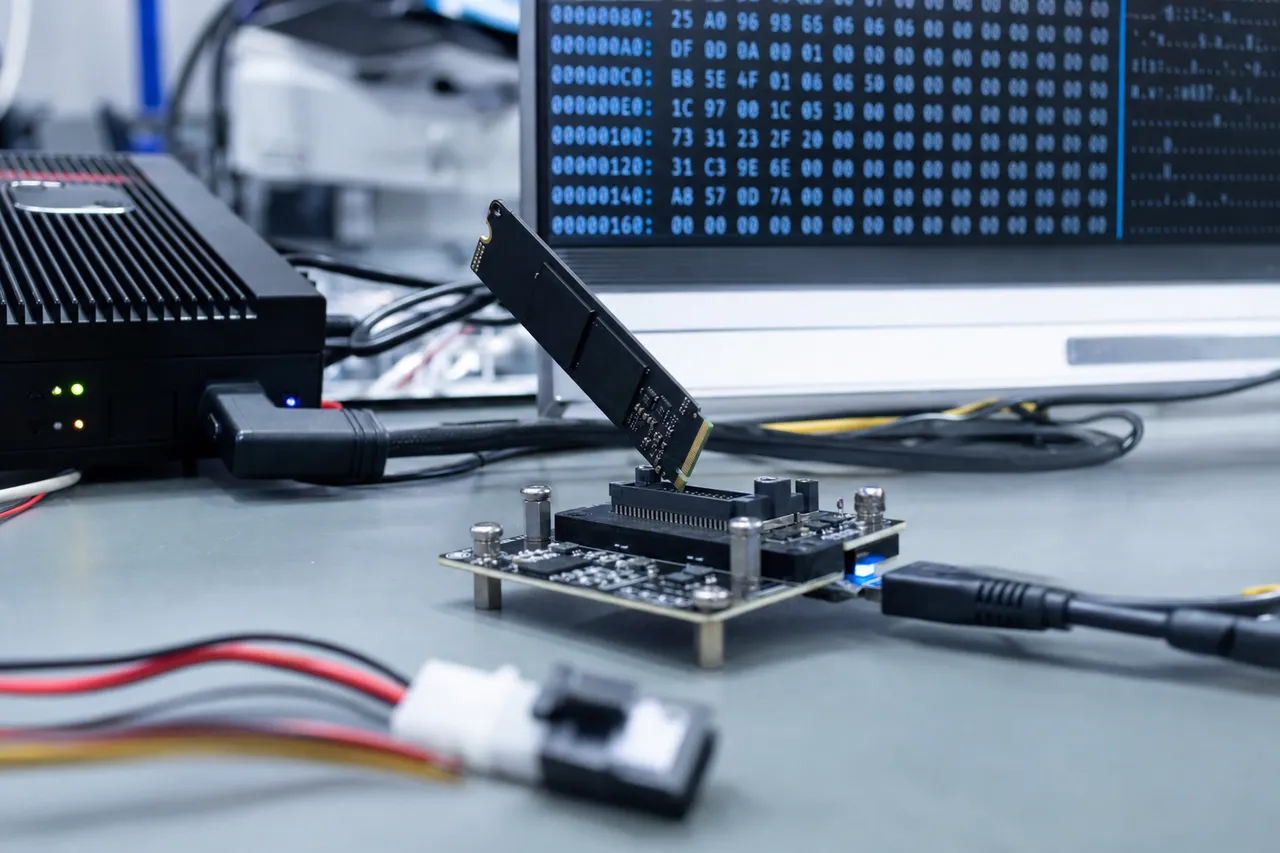
In most cases, a dead SSD is the result of a failed controller or corrupted firmware. To address this, we use a hardware/software complex like the PC-3000 SSD. This is not downloadable software; it is a specialized hardware platform that allows us to communicate directly with the SSD's electronics at a fundamental level.
This system enables our engineers to force the SSD into a special diagnostic state called technological mode. This is essentially a backdoor that bypasses the drive's normal, failing startup routine, allowing us to circumvent the corrupted firmware that has rendered it inoperable.
Once in this mode, we can issue low-level commands directly to the drive’s memory and firmware, opening several recovery paths:
- Load Good Firmware: If a known-good firmware version for the specific drive model is available, we can load it into the SSD's RAM to regain control.
- Rebuild the Translator: We can often access and repair the critical firmware modules containing the data map (the translation layer).
- Image the Drive: By bypassing the faulty controller, we can create a perfect, sector-by-sector clone of the raw data from the NAND chips onto a healthy destination drive.
The Last Resort: Chip-Off Recovery
For cases of severe physical damage - such as a snapped PCB, a completely fried controller, or firmware so unique that no tech-mode solution exists - we employ an advanced technique: chip-off recovery.
This is a microscopic surgical procedure. It requires a clean-room environment and expert skill, as it involves physically desoldering each individual NAND memory chip from the SSD’s circuit board.
The chips are then cleaned and placed into a specialized NAND reader, which extracts the raw binary data from each one. This is only the beginning. The data is not stored linearly; it is scrambled and split across the chips using complex wear-leveling and error-correction algorithms.
Our task then becomes reverse-engineering those algorithms to reassemble the raw data, unscramble the block structure, and reconstruct the original file system. It is analogous to reassembling a shredded document from thousands of mixed-up pieces. This represents the most advanced form of SSD data recovery.
The complexity of these procedures, from firmware manipulation to chip-off work, is why professional intervention is critical. While general data recovery success rates are often cited around 78%, specialized labs achieve significantly higher outcomes for complex SSD failures due to these advanced methods. MDRepairs handles these exact failure types for clients across the United States. You can read more about the factors influencing data recovery success rates.
Why This Is Not a DIY Job
Techniques like component-level board repair, firmware manipulation, and chip-off recovery are not DIY projects. They demand tens of thousands of dollars in equipment, a sterile lab environment, and years of hands-on experience.
Attempting to repair a physically or electronically failed SSD without this expertise is a certain way to turn a recoverable case into permanent data loss. Our nationwide mail-in diagnostics are designed to prevent this by allowing us to safely determine the precise point of failure and apply the correct lab-level technique. For those needing expert help, our New York data recovery mail-in center provides a gateway to getting your data back safely.
Picking the Right Data Recovery Service
When your SSD fails and you’ve exhausted safe, simple checks, the choice of a recovery provider becomes the most important decision in the process. It will directly impact whether your files are recovered.
Not all data recovery services are created equal. A significant gap in capability exists between a professional data recovery lab and a general computer repair shop. Choosing an under-equipped provider can result in higher costs and, worse, the permanent loss of your data.
It is crucial to look beyond marketing claims and low initial price offers. To protect your data, you must vet a company's technical capabilities, transparency, and policies.
Questions You Absolutely Must Ask
Before sending your drive anywhere, you should contact the company and ask specific questions. A reputable, professional lab will provide clear, confident answers. Vague or evasive responses are a major red flag.
- Do you have a certified clean room? While less common for SSDs than for hard drives, any procedure requiring the drive to be opened necessitates a certified clean-room environment. This is a specialized, air-filtered lab that prevents microscopic dust from causing permanent damage.
- What kind of specialized tools do you use? A professional lab will openly discuss its investment in industry-standard hardware like the PC-3000. This equipment is essential for complex firmware-level SSD recoveries. If a company only mentions software, they are not equipped to handle serious electronic or physical failures.
- What does your diagnostic process involve? A legitimate lab performs a comprehensive, non-intrusive evaluation before providing a final quote. Be wary of any company that gives a price over the phone without physically examining the drive.
- Is your service "No Data, No Charge"? This policy is an industry standard for a reason. It means that if the company cannot recover the specific data you need, you do not pay for the recovery service. It aligns their success with yours and demonstrates confidence in their abilities.
Watch Out for Deceptive Pricing Schemes
The data recovery industry has some providers who use deceptive pricing. A common tactic is to lure customers with a low initial quote, only to increase it significantly once they have possession of your drive.
A classic bait-and-switch involves quoting a cheap "Level 1" software recovery, knowing your dead SSD requires a complex "Level 3" hardware repair. Once they have your device, the price suddenly triples, leaving you in a difficult position.
A trustworthy lab is transparent from the start. At MDRepairs, our detailed diagnostic evaluation identifies the exact failure, allowing us to provide a firm, flat-rate quote. The price we quote is the price you pay, with no hidden fees or surprises.
Our Nationwide Mail-In Process Explained
We have designed our mail-in service to be as secure and straightforward as possible, providing clients across the country with access to professional lab-level recovery.
How to Package Your Drive for Shipment
Place your SSD in an anti-static bag. If one is not available, carefully wrapping it in aluminum foil can suffice. Cushion the drive with at least two inches of bubble wrap on all sides and place it inside a sturdy cardboard box to prevent any further damage during transit.
The In-Lab Diagnostic
Upon receipt, our engineers perform a deep analysis of the drive's electronic components, controller, and firmware to identify the precise point of failure. This allows us to create a specific, tailored recovery plan.
Your Report and Firm Quote
Within a few business days, you will receive a detailed diagnostic report. It will explain the exact problem, the probability of a successful recovery, and a firm, no-obligation quote. This provides you with all the information needed to make an informed decision. We have streamlined this process for clients nationwide, including those using our California data recovery mail-in options.
The Recovery and Secure Return
Upon your approval, our engineers execute the recovery plan. Afterward, we provide a secure file list for you to review and confirm that your critical data has been recovered. We then transfer your files to a new, healthy external drive and ship it back to you using encrypted methods.
Choosing the right service is the final, critical step. Prioritize genuine expertise, transparency, and policies that protect you. A professional lab not only recovers your data but also provides peace of mind throughout the process.
How MDrepairs can help
Real cases like this come through our New Jersey lab every week. If you are dealing with one now, start here.
- NVMe SSD Data Recovery Recovery from M.2 NVMe drives not detected in BIOS. Learn more
- Samsung SSD Data Recovery Recovery from Samsung 860/870 EVO and SATAFIRM S11 faults. Learn more
- Data Recovery Services Every device and failure type, recovered in our New Jersey lab. Learn more
- Hard Drive Data Recovery Mechanical, firmware and logical HDD recovery on every brand. Learn more