How to Recover Corrupted Files: A Data Recovery Lab Guide
In this article
Discovering a critical file that won't open can be alarming. Whether it's a vital work document or a cherished family photo, the immediate reaction is often to try anything to get it back. However, the first few moments are critical. Your actions can determine whether the data is recoverable or permanently lost.
The single most important first step is to stop using the affected device. Powering down the computer, disconnecting the external drive, or putting a smartphone aside is the safest move. Every moment a device is running, it may be writing new data, potentially overwriting the very file fragments needed for a successful recovery.
Your First Steps After Discovering a Corrupted File
Before attempting any recovery, it's essential to perform a careful assessment. Is this an isolated issue with one file, or is it a symptom of a much larger problem, such as a failing storage device? A proper diagnosis is key to preventing further damage.
Check Your Backups First
While it may seem obvious, checking backups is often overlooked in a moment of panic. Before proceeding with any recovery attempt, methodically check your existing safety nets.
- Cloud Drives: Services like Google Drive, Dropbox, OneDrive, and iCloud often feature a "version history" function. This can allow you to restore a file to a previous state before the corruption occurred.
- Local Backups: If you use an external hard drive for Time Machine (macOS) or File History (Windows), check it for a recent, healthy copy of the file.
If a valid backup exists, your problem is solved without risk. If not, the next step is to determine the health of the storage medium itself.
This methodical, safety-first approach is standard procedure in a professional data recovery lab to ensure no accidental data destruction occurs.
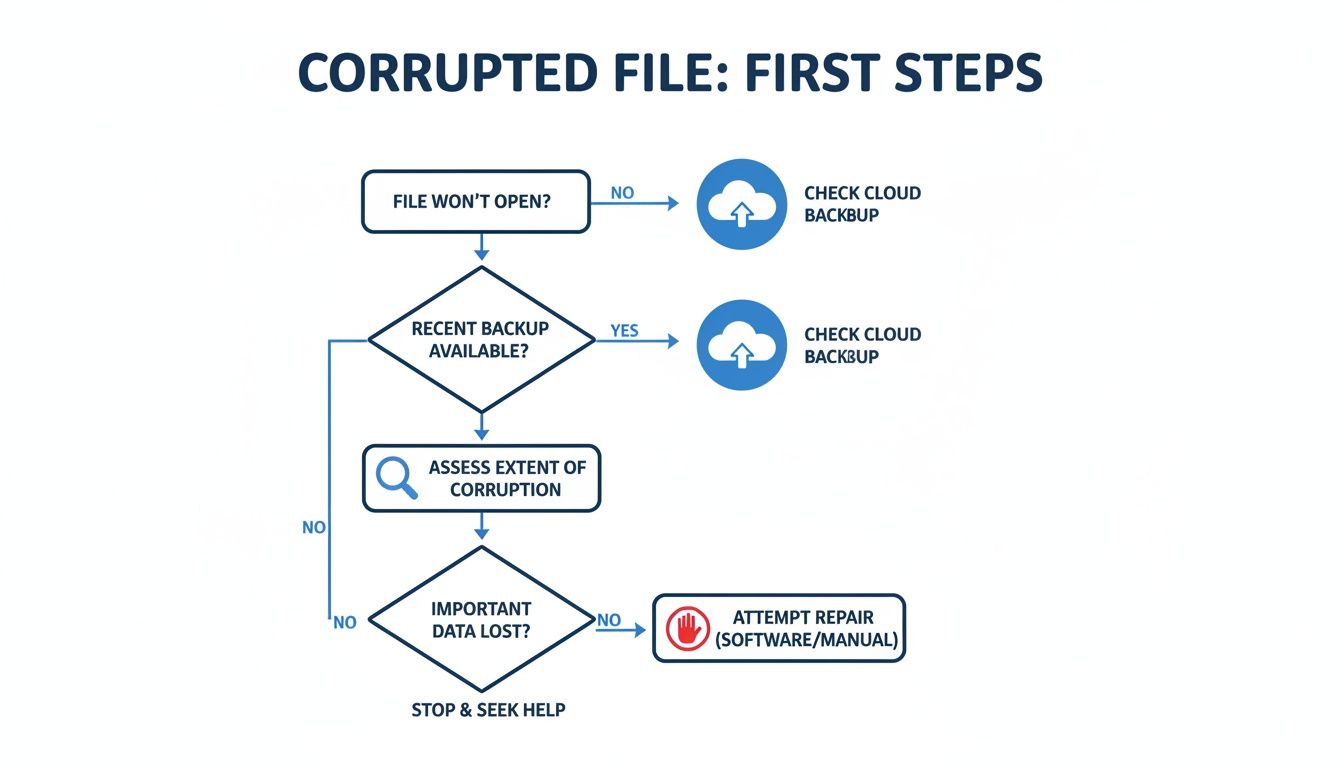
This process prioritizes data preservation. By stopping all potentially damaging activity and assessing the hardware's health, you create the safest conditions for a recovery attempt.
Assess the Health of the Storage Device
It is crucial to differentiate between a simple software-level problem (logical failure) and a hardware-level problem (physical failure). Attempting a software-based recovery on a physically failing drive is one of the most common causes of irreversible data loss.
Listen and watch for these critical warning signs of physical failure:
- Unusual Noises: Clicking, grinding, or buzzing from a hard disk drive (HDD) indicates a severe mechanical failure. Power down the device immediately. These sounds mean internal components are making physical contact and actively destroying the data-storing platters.
- System Freezes or Sluggishness: If the drive becomes extremely slow or causes the operating system to hang or crash upon access, it is a strong indicator of failing components.
- Disappearing Files: If other files and folders are also missing, it points to a systemic issue with the drive, not just a single corrupted file.
- Drive Not Recognized: If the computer no longer detects the drive, or if it appears with a capacity of 0 GB, it likely signifies a severe firmware or electrical failure.
A significant number of drives arrive at our lab with catastrophic platter damage caused by well-intentioned DIY attempts. Running software utilities like CHKDSK on a physically failing drive forces its damaged components to perform intensive operations, often grinding away the data that a professional lab could have otherwise recovered. If you suspect physical failure, do not run any software.
If none of these symptoms are present, you may be dealing with a logical failure. These can result from power surges, software bugs, or unsafe device removal. A simple test is to try opening the file on a different computer, which can help rule out issues with your local software.
For those facing potential drive failure, professional assistance is vital. Many of our clients seeking California data recovery come to us because standard repair shops lack the necessary clean-room environments and specialized tools for physical recovery.
Understanding Why Your Files Became Corrupted
File corruption is a symptom, not the root cause. A successful recovery depends on accurately diagnosing the underlying issue. At MDRepairs, our first step is always to determine the type of failure, as the correct recovery method depends entirely on this diagnosis.
Attempting a software fix on a physically damaged drive is a critical mistake that can transition a recoverable case into a permanent loss. Identifying the failure type is the most important step in the entire process.
Logical Failures
Logical failures are software-level issues where the physical hardware of the device (HDD, SSD, USB drive) remains intact. The problem lies within the data structure - the "map" that tells the device where your files are stored.
Common logical failure scenarios we see include:
- File System Corruption: A sudden power loss, system crash, or improper drive ejection can damage the file system. The device loses its "table of contents," making it unable to locate and assemble your files correctly.
- Virus or Malware Infection: Malicious software can damage files by encrypting them, deleting critical file headers, or altering their content, rendering them unreadable.
- Software Glitches: An application may fail during a save operation, writing incomplete or incorrect data. In these cases, often only a single file is affected while the rest of the drive is fine.
If you are absolutely certain the hardware is healthy, data recovery software may be an option. However, the risk of misdiagnosing a physical issue as a logical one is significant.
Physical Failures
Physical failures mean a component within your storage device is broken, worn, or damaged. No software can repair a physical defect. These cases require a professional data recovery laboratory equipped with specialized tools and environments.
Classic physical failures we handle at MDRepairs include:
- HDD Head Crash: A data recovery emergency where the read/write heads of an HDD have impacted the magnetic platters. Clicking, grinding, or buzzing noises are tell-tale signs. The drive must be powered off immediately.
- SSD Controller Failure: The controller is the "brain" of an SSD. When it fails, the drive may become undetectable or report an incorrect size, such as 0MB.
- Damaged Connectors: A bent or broken USB or SD card connector is a physical failure that prevents the device from communicating with a computer.
- NAND Memory Wear: Flash memory cells in SSDs, USB drives, and memory cards have a finite number of write cycles. Over time, they degrade and can no longer reliably store data.
When a clicking hard drive arrives at our lab, it is immediately taken into a certified Class 100 clean-room. Opening a drive in a normal environment would introduce dust and other contaminants, causing irreversible platter damage. This is precisely why DIY repairs on physically damaged devices are strongly discouraged.
Understanding the symptoms is key. This table outlines common indicators to help you diagnose the problem.
Symptoms of Logical vs Physical Data Corruption
| Symptom | Likely Cause | Recommended First Action |
|---|---|---|
| A single file won't open, but others are fine | Logical (Software Glitch) | Attempt to open the file on a different computer or restore from a backup. |
| Clicking, grinding, or buzzing sounds | Physical (Mechanical Failure) | Power down the device immediately. Do not run any software. |
| Drive isn't detected by the computer at all | Physical (Electrical/Firmware) | Cease all attempts to power on or connect the device. Seek professional diagnostics. |
| Files and folders are randomly disappearing | Logical or Physical | Immediately stop using the device to prevent data from being overwritten. |
This table provides general guidance, but symptoms can sometimes overlap.
Firmware Corruption
A third category of failure, often misdiagnosed as physical, is firmware corruption. Firmware is the embedded operating system of the drive itself, controlling its core functions.
When this crucial microcode becomes corrupted, the drive can become unresponsive even if all physical components are healthy. The drive might power on but fail to be recognized by the computer, or it may report an incorrect model name.
Firmware repair is a complex, lab-level procedure. It requires specialized hardware tools like the PC-3000 that can directly interface with the drive's service area to repair the damaged modules. This is not a DIY task.
If you have any uncertainty about the cause of your file corruption, the safest course of action is to power down the device and seek a professional evaluation.
Trying Software-Based File Recovery the Right Way
When a drive is physically healthy but files are inaccessible due to logical corruption, recovery software can sometimes be effective. However, using these tools carries significant risk. A single misstep can overwrite data, turning a recoverable situation into a permanent loss.
The cardinal rule is to proceed with caution. Before using third-party software, it's wise to use your operating system's built-in diagnostic tools to assess the situation without making potentially destructive changes.
Start with Your OS's Built-In Tools
Windows and macOS include utilities for checking disk health. Used in a diagnostic capacity, they can provide insight into the drive's file system integrity.
- For Windows Users (CHKDSK): This command-line tool can scan for file system errors. To run it, open Command Prompt as an administrator and type
chkdsk D: /f /r(replace "D:" with the appropriate drive letter). The/fflag attempts to fix errors, while/rlocates bad sectors. Crucially, this should only be run if you are 100% certain the drive is not physically failing. - For macOS Users (Disk Utility): Found in the Utilities folder, Disk Utility's "First Aid" function scans a volume for errors and offers to repair them. The same warning applies: use it only on drives confirmed to be physically healthy.
These tools are designed for minor file system inconsistencies, not for recovering deleted files or repairing severe corruption. If they run into errors, freeze, or fail, it is a signal to stop immediately.
The Golden Rule of Data Recovery: Image the Drive First
The single most important principle in data recovery is: Never work directly on the original failing drive. Every operation, from scanning to browsing files, involves read/write activity. On a compromised drive, this can accelerate degradation or overwrite the data you need to recover.
The professional standard is to first create a sector-by-sector disk image - an exact, bit-for-bit clone of the entire drive - onto a stable, healthy storage device. All subsequent recovery attempts are performed on this clone, leaving the original evidence drive untouched and preserved.
At our lab, creating a hardware-level image is a mandatory first step. It is our safety net. If one recovery strategy is unsuccessful on the clone, we can create a new clone from the original and try a different approach. Without an image, you have only one chance, and any mistake can be catastrophic.
Reputable recovery software should include a feature to create a disk image. This step is not optional; it is the fundamental difference between a professional approach and a risky gamble.
Choosing and Using Third-Party Recovery Software
With a stable disk image created, you can now consider specialized recovery software. When selecting a tool, look for these key features:
- The ability to create a disk image (as discussed).
- A "read-only" scan mode that allows you to preview recoverable files before attempting extraction.
- Support for your drive's specific file system (NTFS for Windows, APFS for Mac, exFAT for external drives, etc.).
When running the software on your disk image, be prepared for a deep scan that can take many hours for large drives as it searches for file signatures to reconstruct lost data.
The need for this professional approach is underscored by industry data. Recent studies on data loss statistics and their impact on businesses show that data loss is a pervasive and costly problem, highlighting the high stakes involved in recovery.
Ultimately, software is limited. It cannot repair a physically broken drive, fix a failed controller board, or resolve severe logical damage. If the drive is making noises, is not detected, or causes software scans to freeze, stop immediately. At this point, the only safe option is to power it down and consult a professional lab. MDRepairs offers a nationwide mail-in diagnostic service at MDRepairs for a clear, no-risk evaluation of your device's condition.
Knowing When to Call a Professional Recovery Lab
There is a clear line between what software can fix and what requires professional intervention. Continuing DIY attempts on a failing drive can quickly escalate damage, turning a recoverable case into a permanent loss. Recognizing the signs of severe hardware or firmware failure is the most important skill in this process.
If you observe any of the following symptoms, the only safe action is to power down the device immediately and cease all recovery attempts. These are not just signs of corrupted files; they are indicators of a device in critical failure.
Physical Failure Red Flags
Physical failures involve broken mechanical or electronic parts. Software cannot fix hardware. Running recovery utilities on a physically failing drive forces it to perform stressful operations, which can rapidly cause irreparable damage.
- Audible Noises: For traditional hard drives (HDDs), any clicking, grinding, buzzing, or beeping is a sign of a severe mechanical problem, such as a head crash or a seized motor.
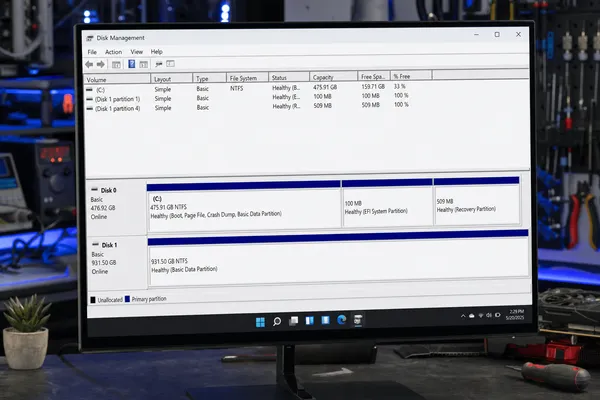
- Drive Not Detected: If the drive does not appear in your computer's BIOS or Disk Management, it suggests a critical failure of the electronics or internal mechanics.
- Extreme Sluggishness or System Crashes: A drive that causes the entire computer to slow down or crash is often suffering from failing read/write heads or extensive bad sectors on its platters.
A clicking hard drive is a data recovery emergency. That sound is often the read/write heads failing to find their designated track, sometimes physically striking the platters where your data is stored. Each click can cause microscopic scoring, literally scraping your data away permanently.
Firmware and Logical Failure Red Flags
In some cases, the hardware is physically intact, but the drive's internal operating system - its firmware - is corrupted. These failures are equally severe and require specialized laboratory equipment.
- Incorrect Drive Information: The drive is detected but reports the wrong model name, a garbled serial number, or a capacity of 0 GB. This indicates the firmware is failing to initialize correctly.
- Repeated I/O Errors: You consistently receive "Input/Output error" messages when trying to access the drive, meaning it cannot reliably read data from its storage medium.
Encountering any of these red flags means you have moved beyond the scope of DIY software and into the realm of professional data recovery.
Why a Professional Lab Is Necessary
When a device is physically failing, a professional lab provides essential capabilities that cannot be replicated at home or in a standard repair shop.
- Class 100 Cleanroom: HDDs must be opened in an environment that is orders of magnitude cleaner than a hospital operating room. A single particle of dust landing on the data platters can cause a catastrophic head crash.
- Specialized Hardware Tools: We use equipment like the PC-3000 to communicate directly with a drive's firmware. This allows us to bypass the operating system, repair damaged firmware modules, and safely clone a failing drive without causing further stress to its compromised components.
- Donor Parts Inventory: For mechanical failures, we may need to perform a transplant of components like read/write heads or controller boards. Our extensive inventory of donor drives allows us to find compatible parts to stabilize a damaged drive long enough for data extraction.
Attempting to recover from these failures without the proper environment and tools is not just risky - it often leads to irreversible data loss. After recovery, if a drive is deemed beyond repair, understanding procedures for secure hard drive disposal is critical for data privacy.
When the symptoms point to physical or firmware failure, a professional evaluation is the only safe path forward. Our nationwide mail-in diagnostics provide a clear, no-risk assessment of the damage, allowing you to make an informed decision.
Preventing File Corruption in the Future
Successfully recovering your files is a relief, but the experience serves as a critical lesson. The best approach to data recovery is to have robust prevention strategies in place. Protecting your data is not about being a tech expert; it's about developing consistent, sound habits. The following practices are designed to mitigate the most common causes of file corruption: hardware failure, power issues, and software glitches.
Embrace the 3-2-1 Backup Rule
This is the gold standard for data protection. The 3-2-1 rule is a simple yet powerful framework that provides redundancy against nearly any failure scenario.
The rule is as follows:
- Maintain at least three total copies of your data.
- Store these copies on two different types of media.
- Ensure one of these copies is stored offsite.
In practice, this could mean having your primary files on your computer's internal drive (copy 1), an automated daily backup to an external hard drive (copy 2, on a different medium), and a third copy synced to a cloud backup service (copy 3, stored offsite).
This strategy protects you from device failure (restore from the external drive), as well as localized disasters like fire or theft (restore from the cloud).
Make Good Data Hygiene a Habit
While backups are your ultimate safety net, good daily practices form your first line of defense. These habits reduce the physical and logical stress on your devices that often leads to data corruption.
- Use an Uninterruptible Power Supply (UPS): A UPS is a battery backup that sits between your computer and the wall outlet. In the event of a power outage, it provides enough power for you to save your work and shut down your computer properly, preventing the sudden power loss that is a leading cause of file system corruption.
- Always Eject Drives Safely: Never unplug a USB drive or memory card without first using the "Safely Remove Hardware" or "Eject" command in your operating system. This ensures that all write operations are complete, preventing file truncation and directory structure damage.
- Monitor Your Drive's Health: Storage devices have a built-in monitoring system called S.M.A.R.T. (Self-Monitoring, Analysis, and Reporting Technology). Utilities like CrystalDiskInfo (Windows) or DriveDx (macOS) can read this data and often provide early warnings of impending drive failure, giving you time to back up your data and replace the device before it fails catastrophically.
Consistent, preventative actions are what separate a minor issue from a data disaster. For mobile devices, for example, knowing how to perform an android wipe cache partition can resolve system issues before they lead to data corruption. By adopting these habits, you are proactively managing risk rather than reacting to emergencies.
Frequently Asked Questions About File Recovery
When facing potential data loss, it's natural to have questions and concerns. Based on our years of experience in the data recovery lab, here are straightforward answers to the most common inquiries we receive.
Can Corrupted Files Always Be Recovered?
Unfortunately, no. Recovery success depends entirely on the cause and extent of the damage.
For minor logical issues, such as a damaged file header or corrupted file system entry, the chances of a full recovery are generally high. However, in cases of severe physical damage - for example, a hard drive head crash that has physically scraped the magnetic coating off the platters - that data is physically destroyed and cannot be recovered.
This is why a professional diagnostic is so critical. By examining the device, we can determine the root cause of the failure and provide a realistic assessment of the recovery potential before any work begins.
How Much Does Professional Data Recovery Cost?
There is no flat rate for professional data recovery because every case is unique. The cost is determined by several key factors.
- Device Type: Recovering data from a complex, multi-drive RAID array requires significantly more work than recovering files from a standard USB flash drive.
- Failure Type: Logical failures resolved with specialized software are less costly than physical failures that demand a clean-room environment, donor parts, and micro-soldering.
- Turnaround Time: We offer an optional rush service for emergency situations, which impacts the final cost.
To ensure transparency, MDRepairs operates on a strict no data, no charge policy. Following our free initial diagnostic, we provide a firm price quote for your approval. You only pay if we successfully recover the specific data you need.
Is It Safe to Mail My Drive to Your Lab?
We understand the concern of shipping a device containing sensitive data. Our nationwide mail-in data recovery service is built on a foundation of security and a strict chain of custody. From the moment your device arrives at our lab, it is handled according to rigorous security protocols.
We treat every device, from a personal hard drive with family photos to an enterprise server with critical business data, with the highest level of confidentiality and care. Our lab adheres to strict data privacy protocols to ensure your information remains secure throughout the entire process.
Data security extends beyond physical media. As detailed in the 2025 SaaS backup and recovery report, data loss from cloud platforms is a growing concern, with malicious deletion being a primary cause.
Whether you're an individual or a business, our team is equipped to handle your case. Our Texas data recovery clients, like all our nationwide clients, receive the same expert service and standard of care.
When software tools are insufficient and the risks are high, a professional evaluation is the most prudent next step. MDRepairs provides professional, no-obligation diagnostics for all storage media, including HDDs, SSDs, RAID systems, and mobile devices. To start the process, visit our lab online at https://mdrepairs.com.
When DIY Stops Being Safe
File corruption can be software related, but it can also be the first sign that the storage device underneath is failing. Stop DIY attempts if new files are becoming damaged, folders vanish and return, the drive disconnects during copying, recovery software freezes, or Windows and macOS ask to repair the disk again and again. Running repair tools directly on the only copy can overwrite metadata or convert a recoverable file system into a much messier case.
The safer move is to stop writing to the device and avoid saving recovered files back to the same drive. If the corrupted files are important, MDRepairs can inspect the media in a real NJ lab and perform professional recovery from damaged drives before repair attempts make things worse. The process starts with a free phone consult and a flat $100 diagnostic applied toward recovery, with no data, no charge. For customers outside New Jersey, the nationwide mail-in service gives you a practical way to get the device to the lab.
How MDrepairs can help
Real cases like this come through our New Jersey lab every week. If you are dealing with one now, start here.
- SSD Data Recovery Controller, NAND and firmware recovery for SATA, M.2 and NVMe SSDs. Learn more
- Data Recovery Services Every device and failure type, recovered in our New Jersey lab. Learn more
- RAID Data Recovery Array reconstruction for RAID 0/1/5/6/10, NAS and servers. Learn more
- Data Recovery Cost What recovery really costs - flat tiers, no data no charge. Learn more