How to fix a USB drive no longer recognized
In this article
When a USB drive is no longer recognized, first rule out the easy causes, then stop before you make a hardware problem worse. Most cases trace to one of four issues: a logical/file-system fault, electrical failure, firmware corruption, or physical damage. Try this safe sequence:
- Plug into a different USB port, then a different computer
- Open Disk Management (Windows) or Disk Utility (Mac) to see how it's detected
- If it shows as RAW or unallocated at the correct size, the data is likely intact: do NOT format or initialize
- Stop immediately if it's dead, runs hot, or shows the wrong size (e.g. 8MB instead of 128GB): those are hardware faults
For a dead, hot, or wrong-size drive, software is useless and risky. A lab can bypass the failed controller and read the NAND directly with professional flash drive recovery.
That sinking feeling when you plug in a flash drive and get an error - or worse, nothing at all - is an experience most of us know too well. When your computer suddenly announces it no longer recognizes a USB drive, it's rarely a simple connection hiccup. This message is often the first, and sometimes only, warning of a much deeper problem.
As a data recovery laboratory, we see this exact scenario play out every single day. A client mails in a drive that's gone completely silent, and our job is to diagnose the underlying failure. In almost every case, the root cause boils down to one of just a few core issues. Knowing what they are is the first step to getting your files back safely.
What’s important to understand is that USB flash drives, for all their convenience, are susceptible to failure. This isn't necessarily a defect; it's the nature of their NAND flash memory, which has a finite number of write cycles and wears down with use, alongside other electronic components that can fail.
Why Your Computer No Longer Recognizes Your USB Drive
When a USB drive goes dark, the problem almost always falls into one of four categories. Here’s a quick rundown of what we typically find during our lab diagnostics.
To help you get a clearer picture, let's break down these common failure points. This table summarizes what might be going wrong inside your drive and, crucially, what you can (and can't) do about it yourself.
Common Causes of an Unrecognized USB Drive
| Failure Type | Common Symptoms | DIY Fixability | Professional Recovery Needed? |
|---|---|---|---|
| Logical Failure | Drive is detected but asks to be formatted, shows as RAW, or files are missing/corrupted. | Sometimes. Data recovery software can work, but only if the drive is stable and the issue is not masking a deeper problem. | Yes, if software fails or you can't risk further data loss. |
| Electrical Failure | Drive is completely dead - no light, not detected at all. Often caused by a power surge, static, or component failure. | No. Requires micro-soldering and component-level repair on the circuit board in a lab environment. | Absolutely. This is a job for a specialist with advanced diagnostic and repair tools. |
| Firmware Failure | Drive is detected with the wrong size (e.g., 8MB instead of 128GB) or a generic name. | No. Firmware is proprietary and needs specialized tools to reprogram or bypass. | Yes. Only a professional lab can interface with the controller to rebuild firmware and access the data. |
| Physical Damage | Bent or broken connector, cracked casing, water exposure. The drive may get hot when plugged in. | No. Trying to plug in a bent connector can cause a short circuit and destroy the memory chip. | Absolutely. Damaged components must be repaired or bypassed by an expert to safely access the memory chip. |
Understanding which category your drive's failure falls into is critical. As you can see, most "not recognized" errors aren't just software glitches you can fix with a quick download.
A common and dangerous myth is that all "not recognized" errors are fixable with software. The reality is, if the problem is electrical, firmware-related, or physical, running recovery software is not only useless - it can be destructive. Powering on a damaged drive repeatedly can cause electrical shorts that fry the memory chip itself, turning a recoverable case into a permanent loss.
This isn't just a niche problem. The 'not recognized' error is a massive red flag. One industry survey found that 28% of all USB recovery cases started with this exact symptom, often pointing directly to a failed controller chip or corrupted firmware. You can dig into more data on storage device failure rates on Tom's Hardware if you're curious.
This is precisely why our mail-in diagnostics at MDRepairs are designed to be non-destructive. We first identify the exact point of failure without putting your data at risk, letting you know if recovery is possible before any recovery work is attempted.
Safe First Steps to Diagnose an Unrecognized USB Drive
When you plug in your USB drive and get no response, it’s easy to panic. Before you assume your files are gone forever, it’s crucial to run through a few safe, non-destructive checks. These first steps are all about gathering clues to figure out if the problem is with your computer or the drive itself, without making things worse.
The first, and simplest, thing to do is rule out your computer. A faulty USB port or a temporary driver glitch can mimic the symptoms of a failed drive.
- Try a different USB port: Unplug the drive and insert it into another port on the same computer. Ports can fail or have a poor connection.
- Test on another computer: Still no luck? If possible, try it on another machine. If you're on a Windows PC, try a Mac, or vice versa. If the drive is recognized and works perfectly elsewhere, the problem is likely with your original computer's drivers or hardware, not your data.
If those simple checks don't work, it's time to dig a little deeper and see how your computer's operating system is (or isn't) seeing the drive. This means using the built-in disk management tools.
Checking the Drive in System Utilities
For a more technical look under the hood, both Windows and macOS have utilities that provide detailed information about connected storage. This is where we can often find critical diagnostic clues.
On a Windows machine, this tool is called Disk Management. You can access it by right-clicking the Start button and selecting "Disk Management." If you're on a Mac, you'll want to open Disk Utility, which is located in your Applications > Utilities folder.
Once you have the utility open, scan the list of connected disks for your USB drive. What you see here - or what you don't see - is critical.
This flowchart breaks down the initial diagnostic path. It helps visualize when it’s safe to continue troubleshooting and when it's time to seek professional evaluation to avoid data loss.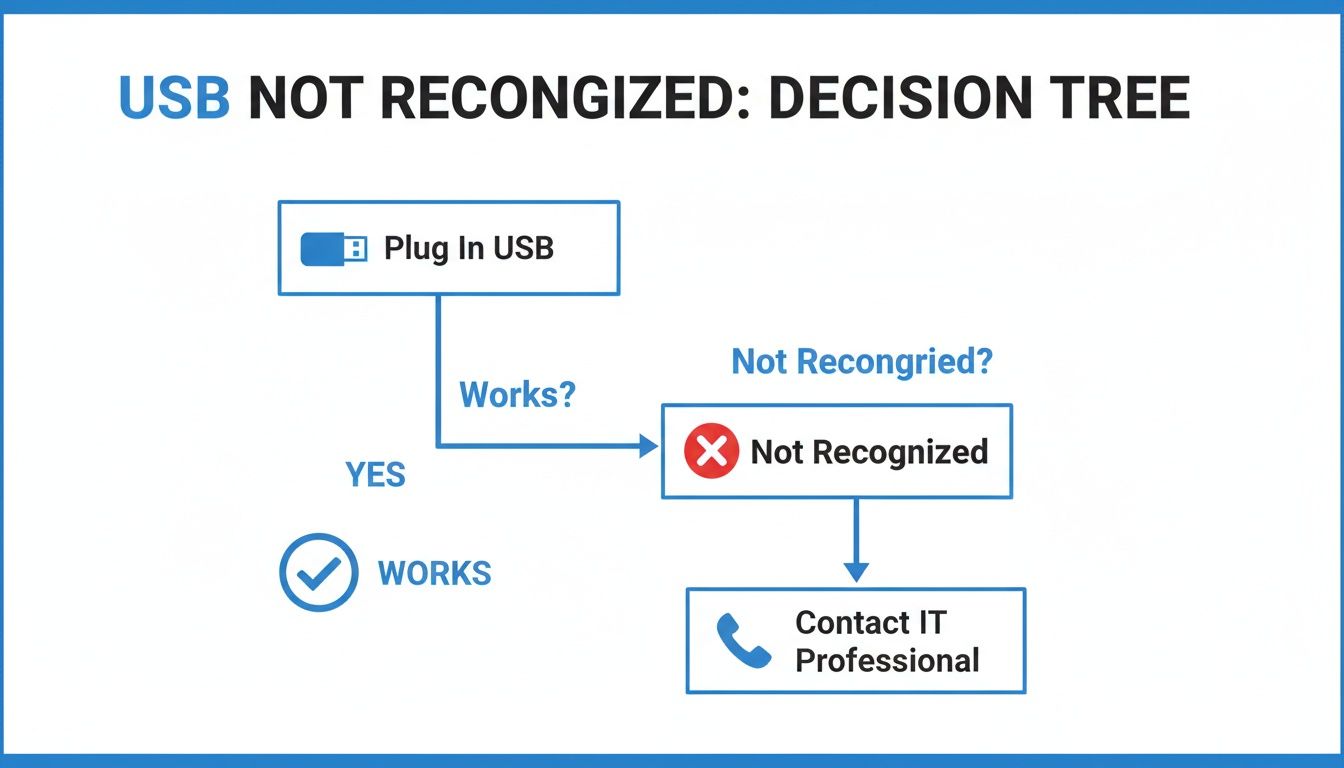
As you can see, if basic troubleshooting fails, the safest path forward to protect your files is to have the device professionally evaluated.
Interpreting What You See in Disk Management
When you're looking at Disk Management, you’re gathering evidence. A healthy drive will appear clearly with its correct capacity and a recognizable file system like NTFS, exFAT, or APFS. A failing drive, on the other hand, will display specific red flags.
Here’s what you need to watch out for:
- Drive Appears as RAW: This is a common symptom. It means the OS sees the physical drive but cannot interpret the file system. The underlying data is likely intact, but the directory structure that points to it is damaged or lost.
- Drive Shows as Unallocated: This indicates the partition information has been lost or corrupted. The drive appears as empty space, but your files may still be physically present on the memory chips, waiting to be recovered.
- Incorrect Capacity: This is a major warning sign. If your 256GB drive suddenly shows up as 8MB or another incorrect small size, stop immediately. This almost always points to a serious controller or firmware failure inside the drive.
- Drive Doesn't Appear at All: If the drive is completely absent from Disk Management or Disk Utility, it’s a strong indicator of a physical or electrical problem. This could be a broken connector, a failed power component, or a dead controller chip.
Crucial Warning: Do NOT Format the Drive!
If your computer ever prompts you to "Initialize" or "Format" the disk, do not click 'OK'. This is one of the most common mistakes users make. Formatting a drive overwrites critical file system data, effectively destroying the "map" to your files. It can turn a simple, inexpensive logical recovery into a complex, costly, and sometimes impossible one.
These diagnostic steps are purely for information gathering. They help you understand the severity of the problem without taking unnecessary risks. If you see any of the warning signs above - especially an incorrect capacity or a prompt to format - the absolute safest next step is to stop. Unplug the drive and let a professional evaluate it. At MDRepairs, our nationwide mail-in diagnostics can pinpoint the exact cause of failure without putting your data in jeopardy.
When a USB drive stops working, the way it fails tells a story. In data recovery, we analyze these symptoms to determine if we're dealing with a logical failure or a physical one. Differentiating between the two is the most important step in understanding the chances of a successful recovery.
Think of it this way: a logical failure is like a library with a scrambled card catalog. All the books - your data - are still on the shelves, but the system for finding them is broken. Your computer might see the drive but doesn't know how to access its contents.
A physical failure, on the other hand, is like that same library having a fire or flood. The building or the books themselves are damaged. In this case, the drive's internal components - the memory chips, the controller, or the circuit board - are what's broken.
Symptoms of a Logical Failure
If your drive is physically healthy but its data organization is corrupted, you're looking at a logical failure. This is generally the best-case scenario when a drive becomes "unrecognized."
You're likely dealing with a logical issue if you see these signs:
- The drive is detected, but its file system is listed as "RAW."
- Your computer displays the message: "You need to format the disk before you can use it." (Do not click "Format Disk"!)
- Your files and folders have disappeared, or their names are garbled.
- The computer reports errors about a corrupt or unreadable directory.
In these cases, data recovery software can sometimes be effective. Because the hardware is operational, software tools can scan the raw memory and attempt to reconstruct the file system. However, this is only safe if the drive is stable and shows no signs of physical failure.
Decoding Physical Failure Symptoms
Physical failures are a different category of problem. They are serious, and any attempt to continue using the drive can cause further, often irreversible, damage. Software is ineffective against hardware failures.
Be on the lookout for these red flags of physical damage:
- The drive is completely dead. No light, no connection sound, and it does not appear in Disk Management or Disk Utility.
- It gets alarmingly hot to the touch. A hot drive indicates an electrical short. Unplug it immediately.
- The USB connector is wobbly, bent, or broken. Plugging in a drive with a damaged connector risks an electrical short that can destroy the memory chips.
- The drive shows up with the wrong size. A 128GB drive appearing as 8MB is a classic symptom of a failed controller chip or corrupted firmware.
At MDRepairs, we see the real-world connection between these symptoms and the damage inside. A drive that runs hot almost always has a shorted component on the circuit board. An incorrect capacity report points directly to a controller or firmware problem. Attempting a DIY fix on these issues is extremely risky and is far more likely to cause permanent data loss than to solve the problem.
These distinctions aren't just technical jargon; they determine the recoverability of your data. We know from analyzing thousands of failed drives that for solid-state USBs, controller burnout is the culprit in 35% of cases. A whopping 99% of those are only recoverable in a professional lab. With over 3.3 billion new USB drives projected to become unreadable by 2026 from simple wear and tear, knowing what you're up against has never been more critical. You can get a deeper dive into the complexities of modern drive failures on Backblaze's blog.
Ultimately, a logical issue means the map to your data is lost, while a physical issue means your data is trapped behind a wall of broken electronics. Rebuilding that map can sometimes be done with software, but getting through a physical wall requires an expert. If you observe any signs of physical failure, stop. The only safe next step is to have it evaluated by a professional.
USB Drive Not Showing Up at All? Check These Three Places
"Not recognized" and "not showing up" feel identical from the keyboard, but where the drive is missing tells you what failed. Before assuming the worst, check all three layers on Windows, in this order.
1. File Explorer is empty but the drive may still be there. Right-click the Start button and open Disk Management. If the drive appears with a healthy partition but no letter, Windows simply never assigned one: right-click the partition, choose "Change Drive Letter and Paths," and add a letter. Your files were never in danger. If the partition shows as RAW or unallocated at the correct capacity, the file system is damaged but the data is usually intact. Do not format, do not initialize.
2. Missing from Disk Management too? Open Device Manager. Look under "Universal Serial Bus controllers" and "Disk drives." An entry like "Unknown USB Device (Device Descriptor Request Failed)" means the drive's controller is not answering the computer at all. That is an electrical or firmware fault, and no software setting will bring it back.
3. On a Mac, go past Finder. Open Disk Utility and choose "Show All Devices." A drive that appears there but will not mount is a file-system problem. If it is absent, check the hardware tree in System Information under USB: present there but not in Disk Utility points to firmware or controller trouble, absent everywhere means the drive is electrically dead on that port.
One more tell: the drive's LED lighting up only proves power is arriving. It says nothing about whether the controller or memory is alive. If the drive appears nowhere on two different computers, treat it as a hardware failure and stop plugging it in. Each retry on a shorted board risks the memory chip that actually holds your files.
When to Immediately Stop All DIY Recovery Attempts
If there's one piece of advice we stress above all others in a data recovery situation, it's this: know when to stop. It’s natural to want to try another USB port or run one more software tool. But with a failing drive, every time you power it on, you are taking a risk with your data.
Continuing to experiment can quickly turn a recoverable problem into permanent data loss. If you spot any of the red flags below, the absolute best thing you can do is unplug the drive and leave it powered off.
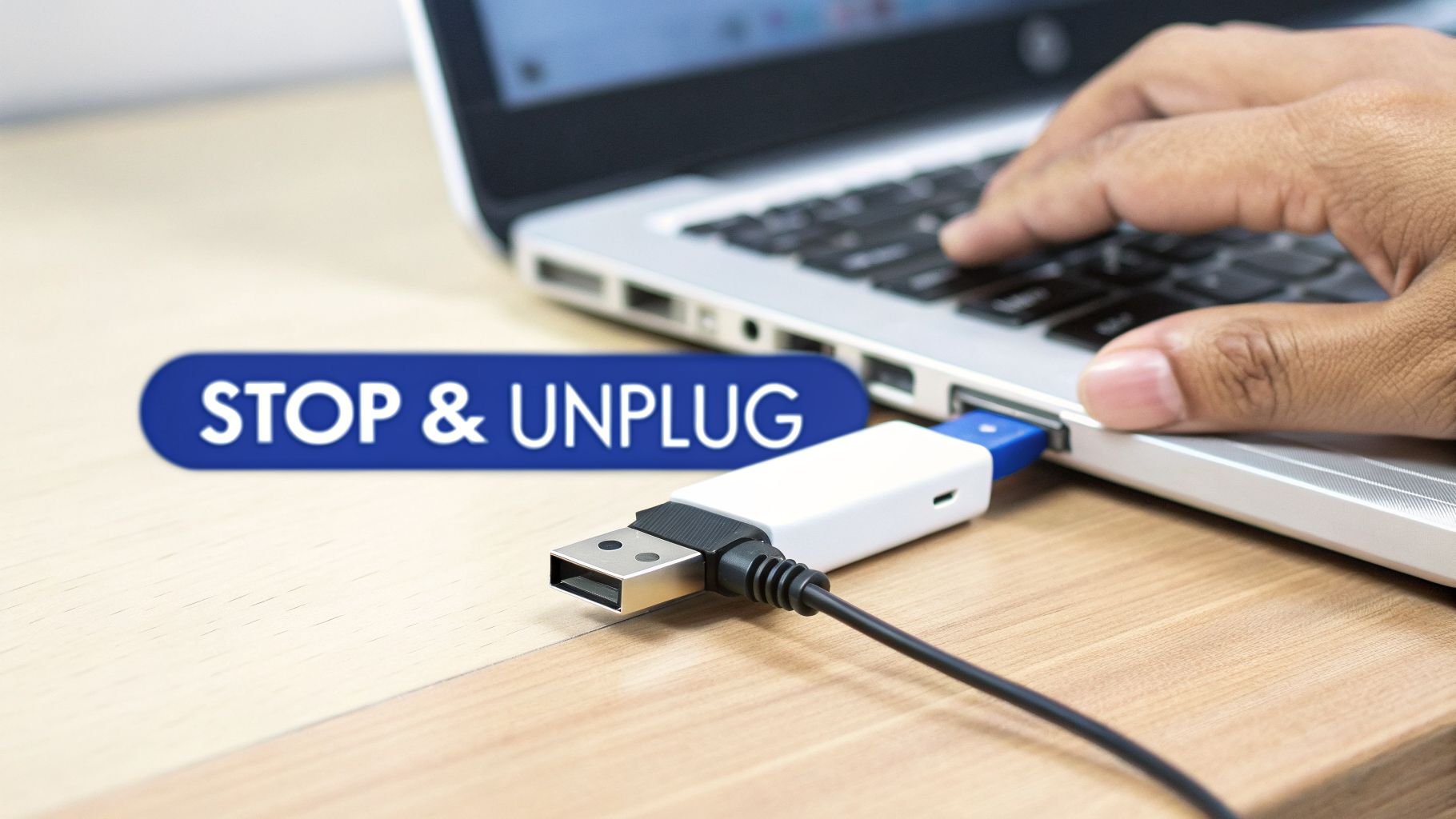
These symptoms mean the issue is no longer a simple logical error. You are likely now in the territory of physical, electrical, or firmware failure. At this point, DIY methods are not just unhelpful - they are actively dangerous to your data.
Severe Physical and Electrical Warnings
Some signs are an immediate, non-negotiable full stop. Powering the drive on even one more time can cause irreversible damage to the delicate NAND memory chips that hold your data.
Unplug the drive without a second thought if you see any of these:
- Visible Physical Damage: If the USB connector is bent, loose, or completely snapped off, do not attempt to plug it in. The same goes if the drive's casing is cracked from being dropped or crushed. A damaged connector can create an electrical short that can instantly destroy internal components.
- The Drive Gets Unusually Hot: A drive that becomes hot to the touch indicates a serious problem. This almost always means there's a short circuit on the printed circuit board (PCB). Leaving it plugged in allows that excess current to flow, potentially burning out everything from the controller chip to the memory itself.
- It Fails to Appear Anywhere: The drive shows zero signs of life - no flashing light, no connection sound, and it's completely absent in Disk Management (Windows) and Disk Utility (macOS). This points to a major power, electrical, or controller failure. The drive is effectively dead to the computer.
The moment a USB drive shows an incorrect size is the moment all DIY attempts must end. This symptom almost always indicates a failed controller or corrupted firmware. Each time you plug it in, you're giving that faulty controller a chance to write garbage data over your files or cause an electrical fault that destroys the memory chips.
The Most Deceptive Symptom of All
One of the most dangerous warning signs is also one of the most misleading. If your 128GB drive suddenly shows up as something bizarre, like 8MB or even 0MB, you're looking at a critical firmware failure.
The drive's controller - its "brain" - has malfunctioned and can no longer communicate with the memory chips properly. The drive is now in an extremely unstable state. This is the absolute point of no return for any software-based fix.
The only safe path forward from here is to have a professional data recovery lab evaluate it. Our specialists at MDRepairs deal with these exact symptoms daily, using our nationwide mail-in diagnostics to safely assess the damage. For these complex cases, our teams providing data recovery services in California and across the country have the specialized tools needed to bypass the failed controller and read the data directly from the memory chips.
How Professional Data Recovery Labs Rescue Your Files
When software fixes and diagnostic checks have failed, it’s time to consider what happens in a professional lab. An unrecognized USB drive that resists basic troubleshooting has likely moved beyond a simple logical error and into the realm of physical, electrical, or firmware failure. This is where professional data recovery comes in, and the methods used are worlds apart from DIY solutions.
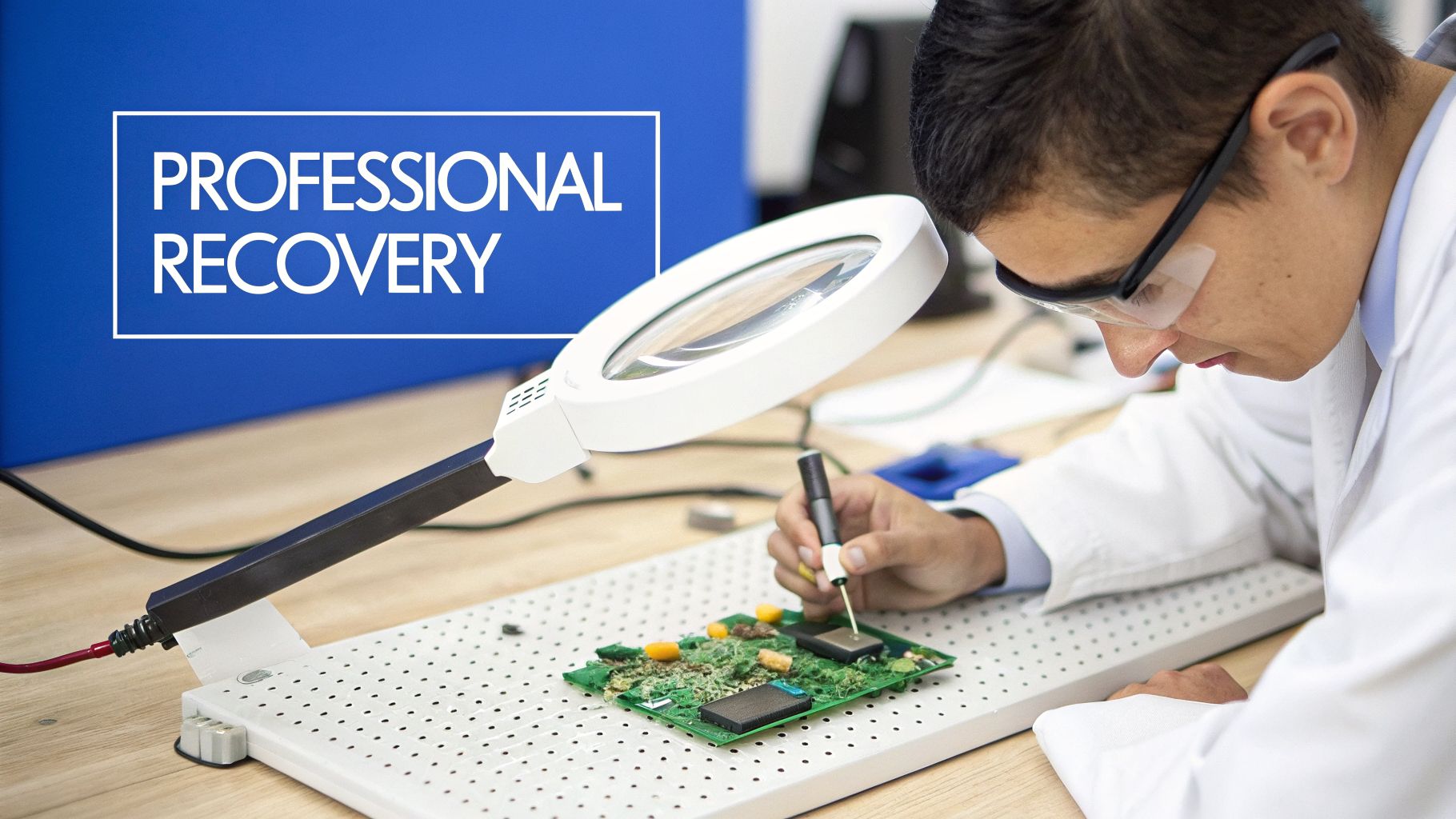
At MDRepairs, our nationwide mail-in service is specifically designed for these complex cases. This isn't about running software; it's a forensic process performed at a microscopic level. Let’s pull back the curtain on what happens when your drive arrives at our lab.
The Initial Professional Evaluation
The first step is to identify the exact point of failure without causing further damage. We never plug a potentially damaged drive into a standard computer. Instead, we use specialized hardware that allows us to communicate with the drive in a safe, power-controlled environment.
- Visual Inspection: Our engineers begin with a microscopic examination of the drive's internal components. We’re looking for hairline cracks on the circuit board, subtle signs of corrosion from liquid exposure, or a damaged pin on the USB connector that could be causing a short circuit.
- Electrical Testing: Next, we use multimeters and oscilloscopes to trace the flow of power across the printed circuit board (PCB). This diagnostic step quickly tells us if a critical component - like a capacitor, resistor, or the power management IC - has failed, preventing the drive from powering on.
This initial evaluation is the most important part of the process. It tells us whether we’re dealing with a simple component replacement or a much deeper problem involving the controller or memory chips.
Bypassing a Failed Controller
In many "not recognized" cases, the culprit is the controller chip. This chip is the brain of your flash drive, managing how data is written to memory and how it communicates with your computer. When it fails, your data becomes inaccessible.
This is where highly specialized tools like the PC-3000 Flash become essential. This isn't software you can download; it's a powerful hardware-software platform that allows our engineers to completely bypass the broken controller. We can then communicate directly with the raw NAND memory chips, even when the drive’s own brain is non-functional.
When Firmware Engineering Is Required
Sometimes, the hardware itself is fine, but its internal software - the firmware - is corrupt. This is a common reason why a drive might suddenly show up with the wrong size, like 8MB instead of its true 128GB capacity.
The firmware is the drive's internal operating system. When it gets scrambled, the drive forgets what it is. Our engineers must reverse-engineer and rebuild this unique firmware, essentially teaching the drive how to function correctly again. This is a highly specialized skill that no consumer software can replicate.
Fixing firmware corruption often involves loading specific microcode to force the drive into a "technological mode." This provides an access point to the memory, allowing us to reconstruct the data translators and make your files readable again.
The Delicate Art of Chip-Off Recovery
For the most severe failures - a snapped drive, severe water damage, or a completely fried circuit board - we turn to chip-off recovery. This is one of the most advanced and delicate techniques in data recovery.
The process is meticulous:
- Desoldering: Using precise hot-air rework stations in a controlled lab environment, we carefully desolder the NAND memory chips from the USB drive’s PCB. One mistake with heat or handling can destroy the chips permanently.
- Cleaning: Each tiny chip is then meticulously cleaned under a microscope to remove any residual solder or epoxy.
- Reading: The chips are placed into a specialized NAND reader connected to our recovery hardware. This allows us to read the raw, jumbled data from each chip individually.
- Reassembly: This is the most complex step. Our engineers use sophisticated algorithms and proprietary software to reassemble the data from the different chip dumps, unscrambling the data and rebuilding the original file structure.
The financial impact of these failures can be significant, especially for small businesses and creative professionals. Data from IDC indicates that USB failures are responsible for 12% of business data loss in the U.S., with recognition errors being a top symptom. From our own experience at MDRepairs, we see an 88% success rate on "not recognized" cases using these advanced methods - a stark contrast to the roughly 15% success rate for DIY attempts. For a deeper look at drive failure trends, check out this detailed industry analysis.
These lab-level procedures make it clear why professional recovery is often the only viable option. From our main lab, we provide these expert services to clients across the country, including those needing specialized data recovery in New York. The difference is in our tools, our clean-room environments, and our deep, hands-on understanding of how these devices fail at their most fundamental level.
Frequently Asked Questions
When your computer suddenly refuses to see your USB drive, panic and confusion can set in. The "USB drive no longer recognized" error brings a flood of questions, especially when irreplaceable data is at stake. As data recovery professionals, we've handled thousands of these cases and hear the same concerns from our clients.
Here are direct, honest answers to the most common questions we get. Our goal is to provide the clarity you need to make the safest and most informed decision for your data.
Can I Use Data Recovery Software to Fix an Unrecognized USB Drive?
This is the most frequent question we're asked. The answer depends entirely on what "unrecognized" means in your specific situation.
Data recovery software can be effective, but only if your operating system can still properly identify the drive's total storage capacity. For example, if you have a 128GB drive that appears in Disk Management as 128GB but is labeled "RAW," you are likely dealing with a logical failure. In this scenario, high-quality software has a reasonable chance of success.
However, if the drive is completely invisible, shows an incorrect size like 8MB, or feels hot, you are facing a hardware problem. Software is completely useless against a physical, electrical, or firmware fault.
A word of caution from experience: Running recovery software on a physically failing drive is one of the most dangerous things you can do. It forces the damaged components to work harder, which can turn a recoverable situation into a permanent loss. For flash drives, this can mean frying the NAND memory chips where your data actually lives.
My USB Drive Is Hot When I Plug It In. What Should I Do?
Unplug it immediately. Do not plug it back in.
A hot USB drive is a clear sign of a serious electrical issue, almost always a short circuit on its internal printed circuit board (PCB). Every second it remains plugged in, that short circuit can cause a cascade of damage, burning out the controller chip, power-regulating components, or even the memory chips themselves.
This is a critical failure that requires professional equipment to diagnose safely. In our lab, we use specialized power-controlled tools to identify the short without risking the very chips that hold your data.
What's the Average Cost for Professional USB Drive Recovery?
The cost of a professional recovery is tied to the complexity of the problem, not the amount of data on the drive. A simple logical issue that can be resolved with our advanced software tools will be the most affordable service.
From there, the price scales with the required lab work:
- Electrical Failures: These cases often need delicate micro-soldering work to replace tiny failed components like capacitors or resistors on the PCB.
- Firmware Corruption: The drive's internal operating system is scrambled. Fixing this requires using highly specialized hardware and engineering expertise to essentially reprogram the drive's controller.
- Chip-Off Recovery: This is the most complex and intensive procedure. It involves physically desoldering the NAND memory chips from the board and reading them with a separate device. This is the solution for snapped drives, monolithic flash drives, or devices with completely destroyed circuit boards.
At MDRepairs, we believe in full transparency. We start every case with a professional evaluation and provide a firm, all-inclusive quote before any recovery work begins. You'll know the exact cost and can make a decision with zero pressure. Our nationwide mail-in service makes this professional process accessible, including to those searching for data recovery specialists in Texas.
How Does a "No Data, No Charge" Guarantee Actually Work?
Our "no data, no charge" policy is our commitment to a risk-free process for our clients.
It’s a simple, straightforward guarantee:
- You send your unrecognized USB drive to our lab for a professional evaluation, which is always.
- Our engineers perform a deep-dive diagnosis to find the exact cause of failure and determine the recovery potential.
- We then provide you with a fixed-price quote and, whenever possible, a list of recoverable files so you can verify the results.
If we determine the data is not recoverable, or if you review the file list and decide not to proceed, you owe nothing for the recovery attempt. You only pay the quoted fee if we successfully recover the data you need. This policy ensures your investment is directly tied to a successful outcome.
If you're facing a "usb drive not recognized" error and suspect the problem is serious, the safest next step is to stop and seek professional help. The engineers at MDRepairs have the specialized tools, clean-room lab, and hands-on experience to tackle everything from simple logical issues to the most complex chip-off recoveries.
To start a case with a free phone consult, get your free quote here.
When DIY USB drive recovery fails
If your USB drive is still not recognized after testing another port and computer, do not keep plugging it in. Heat, a bent connector, no activity light, or a capacity that suddenly appears as 0MB or 8MB points to electrical, controller, or firmware failure. Formatting, initializing, or running recovery software cannot repair that kind of fault. In some cases, repeated power cycles can damage the NAND chip that still holds your files.
A professional lab can test the board, repair broken connections, or bypass the controller to read the memory directly. MDRepairs offers USB flash drive recovery for failed thumb drives and flash media in our New Jersey lab. Use mail-in data recovery from anywhere in the US with insured shipping, a prepaid inbound label, a $100 diagnostic applied toward recovery, and no data, no charge.
How to Recover a USB Drive That Is Not Recognized
To recover a USB drive that is not recognized, first determine whether the computer can see the device at any level. There is a big difference between a USB stick that has no drive letter but appears in Disk Management at the correct capacity, and a USB stick that is completely dead, hot, physically bent, or showing the wrong size. The first case may be logical corruption. The second is usually hardware, firmware, controller, or NAND failure.
Start with safe checks only. Try a different USB port directly on the computer, not through a hub. Try a second computer. On Windows, check Disk Management and Device Manager. On macOS, check Disk Utility and System Information. If the USB drive appears at the correct capacity but asks to be formatted, do not format it. If it appears as RAW or unallocated, the file system may be damaged while the underlying data is still present. In that case, make a sector image if possible, then recover files from the image or scan the device once and save results elsewhere.
Stop immediately if the flash drive gets hot, blinks forever without appearing, disconnects repeatedly, reports 0 bytes, reports a tiny incorrect capacity, has a cracked case, or has a bent connector. Recovery software cannot fix a flash drive the computer cannot read. Repeated plugging and unplugging can worsen solder cracks, controller failure, or unstable NAND reads.
In lab recovery, we do not need the USB drive to mount like a normal disk. Depending on the failure, we may repair the connector, stabilize the board, bypass the USB controller, or read NAND directly and reconstruct the controller's layout. That reconstruction can involve wear leveling, block order, error correction, and XOR patterns, which is why generic software cannot handle dead flash media. MDrepairs performs unrecognized USB drive recovery in our New Jersey lab and accepts nationwide cases through mail-in data recovery. If the files matter, the safest answer is to stop once basic detection checks fail.
Frequently Asked Questions
Can software recover a USB drive that is not recognized at all?
No. Software needs the operating system to read the USB drive. If the device is not detected, shows no correct capacity, disconnects constantly, or has hardware damage, software has nothing stable to scan. Recovery then requires hardware-level work, controller repair, or NAND reading in a lab.
What if my USB flash drive light blinks but it is not detected?
A blinking light only means the drive is receiving power or trying to communicate. It does not prove the controller or NAND is readable. Try one other port and one other computer. If it still does not appear at the correct capacity, stop testing. Repeated attempts can make an unstable flash drive harder to recover.
When the Card or Stick Itself Is Failing
Flash media usually fails at the controller rather than the memory chips, which is why a card can read fine one day and show nothing the next. If safe checks did not bring it back, monolith and chip-off work in the lab often can. See every data recovery service we offer for cards, USB drives, and other storage. The diagnostic is $100, applied toward recovery. No data, no charge.
How MDrepairs can help
Real cases like this come through our New Jersey lab every week. If you are dealing with one now, start here.