How to Recover a Formatted SD Card: A Professional Guide
In this article
Yes, you can recover data from a formatted SD card in most cases. Formatting only wipes the file directory, not the photos and videos themselves: the actual data stays on the NAND flash until new files overwrite it. Stop using the card immediately and run recovery software before shooting anything new.
- Quick format: highly recoverable; the data is untouched
- Full format or reused card: recovery odds drop as data gets overwritten
- Card won't read or is physically damaged: use professional SD card data recovery
Yes, you can recover data from a formatted SD card in most cases. When you format an SD card, the card doesn't actually erase your photos and videos. It just wipes the file directory, the index that tells your device where each file is stored. The actual data stays on the NAND flash chips until something new overwrites it. According to data from Amagicsoft, SD cards account for roughly 23% of all data loss cases, and 54% of that data loss is caused by human error, which includes accidental formatting. The good news is that formatting is one of the most recoverable scenarios we deal with at MDrepairs.
But not all formats are equal. A quick format and a full format do very different things to your data, and knowing the difference matters. We're going to walk you through everything: how formatting actually works at the hardware level, how to create a disk image before attempting recovery, the best software tools, and exactly when you should stop and call a professional lab instead.
Can You Recover a Formatted SD Card?
Short answer: almost always, yes. But the specifics matter. Here's a breakdown of formatting scenarios and how recoverable they are.
| Scenario | Recoverable? |
|---|---|
| Quick format in camera | Very likely (90%+) |
| Quick format on computer | Very likely (85%+) |
| Full format on Windows (Vista+) | Partial (30-50%) |
| Full format on Mac (Disk Utility secure erase) | Unlikely (10-20%) |
| Format + continued use (new photos taken) | Mixed (40-70%) |
| Multiple re-formats | Likely (75%+) |
| Format + card shows errors | Lab needed (60-85%) |
Quick Format vs. Full Format: What's the Difference?
This is the single most important thing to understand about formatted SD card recovery. The word "format" covers two completely different operations, and they have very different implications for your data.
Quick Format
A quick format is like ripping the table of contents out of a book. The chapters are all still there. You just can't look them up by page number anymore. When your camera or computer does a quick format, it creates a brand new, empty file system (usually FAT32 or exFAT) and writes that to the beginning of the card. That's it. Your actual photos, videos, and documents haven't been touched. They're sitting right there on the NAND flash chips, completely intact.
This is what happens about 95% of the time when someone says they "formatted" their SD card. Cameras always do quick formats. The format option in Windows defaults to quick format (the "Quick Format" checkbox is checked by default). Most phones and tablets also do quick formats.
Full Format
A full format is a completely different beast. In addition to writing a new file system, a full format scans every sector on the card and writes zeros to them. This actively destroys data. On Windows Vista and later, a full format writes a zero byte to every addressable sector. On older Windows versions (XP and earlier), a full format only checked for bad sectors without overwriting, so even "full" formats from those operating systems left data recoverable.
Here's the thing that matters: on SD cards specifically, even a full format doesn't guarantee total destruction. SD cards use wear-leveling algorithms managed by their internal controller. The controller sometimes remaps sectors, meaning the logical address being zeroed out might not correspond to the physical NAND location where your data was stored. Some data can survive even a full format because of this remapping. It's not reliable enough to count on for recovery, but it's not zero either.
Quick Format vs. Full Format: Recovery Comparison
| Factor | Quick Format | Full Format |
|---|---|---|
| What it does | Rewrites file table only | Rewrites file table + zeros all sectors |
| Time to complete (32GB card) | Under 5 seconds | 10-30 minutes |
| Data on NAND flash | Fully intact | Mostly overwritten |
| Recovery success rate | 85-95% | 10-50% |
| Software recovery possible? | Yes, usually | Partial at best |
| Professional recovery helps? | Yes, very effective | Depends on wear-leveling luck |
Data Remanence: Why Formatted Data Sticks Around
There's a concept in digital forensics called data remanence. It refers to the residual representation of data that persists even after attempts to erase it. Understanding this helps explain why SD card recovery works so well after formatting.
SD cards store data on NAND flash memory chips. When you write a photo to the card, the camera stores electrical charges in tiny cells on those chips. Each cell holds a charge that represents your data. When the file system says "delete this" or "format the card," those charges don't instantly disappear. The flash memory controller simply updates its internal tables to mark those cells as "available for reuse." The charges remain until the controller physically erases and rewrites those cells with new data.
This is fundamentally different from how SSDs work. SSDs use a feature called TRIM that proactively goes back and erases blocks after deletion. SD cards don't support TRIM. They just leave the old data sitting there. This is great news for recovery.
How Long Does Formatted Data Last on an SD Card?
If you format the card and then put it in a drawer, your data will persist for years. Possibly decades. NAND flash memory retains its charge without power for a very long time (enterprise-grade NAND is rated for 1-10 years of data retention without power, and consumer NAND often exceeds this in practice). The data doesn't fade or degrade in any meaningful way over normal timescales.
The only thing that destroys your formatted data is writing new data over those same physical locations. That's why the number one rule after accidental formatting is: stop using the card immediately. Every new photo or video has a chance of landing on top of your old data.
Step-by-Step: Image Your SD Card Before Recovery
Before you run any recovery software, you should create a bit-for-bit image (clone) of your SD card. This is critically important, and most guides skip this step. Here's why it matters.
Recovery software reads every sector on the card. If the card has any physical problems (bad sectors, failing controller, intermittent read errors), running recovery software directly on the card can stress it further. If the card dies during scanning, you lose everything. Creating an image first means you have a perfect copy to work with. You can scan the image file as many times as you want with different software without ever touching the original card again.
1 Get the Right Equipment
You need a card reader that connects to your computer. Built-in laptop card readers work, but a dedicated USB card reader (like the Anker 2-in-1 or Kingston MobileLite) tends to be more reliable. For microSD cards, use an adapter or a reader with a microSD slot. You'll also need enough free space on your computer's hard drive to store the image. A 64GB card needs 64GB of free space for the image file.
2 Download an Imaging Tool
We recommend one of these free tools:
- Win32 Disk Imager (Windows): Simple, reliable, free. Download from SourceForge.
- dd (Mac/Linux): Built into every Mac and Linux system. No download needed.
- FTK Imager (Windows): Free forensic imaging tool from Exterro. More features, slightly more complex.
3 Create the Image (Windows, Win32 Disk Imager)
Insert the SD card. Open Win32 Disk Imager. Select the SD card's drive letter under "Device." Click the folder icon and choose where to save the image file (save it to your computer's internal drive, not back to the SD card). Give it a filename like sd-backup.img. Click "Read" (not "Write," which would go the wrong direction and destroy your data). Wait for it to finish. This should take 5-15 minutes for a typical 32-64GB card.
4 Create the Image (Mac/Linux, using dd)
Open Terminal. Run diskutil list to identify your SD card (look for the correct size). Let's say it's /dev/disk4. Run: sudo dd if=/dev/rdisk4 of=~/Desktop/sd-backup.img bs=4m status=progress. The "r" before "disk4" uses raw device mode for faster reads. Wait for it to complete. Verify the image size matches the card capacity.
5 Verify Your Image
Check that the image file size matches your SD card's capacity. A 32GB card should produce a roughly 29-30GB image file. If the image is significantly smaller, the imaging process may have hit errors. At this point, you can safely eject and put away the original SD card. All recovery work from here should be done against the image file.
Best Software for Formatted SD Card Recovery
Not all recovery software is equal. Some tools are great at recovering photos from formatted cards. Others are better at dealing with corrupted file systems. Here's what we actually recommend based on what we've seen work in our lab.
How to Choose Recovery Software
Before picking a tool, consider these factors:
- File system support: SD cards use FAT32 (cards 32GB and under) or exFAT (cards over 32GB). Your tool needs to support these.
- Raw/signature scanning: After formatting, file system metadata is gone. You need a tool that can scan raw data and identify files by their signatures (file headers). This is sometimes called "deep scan" or "raw recovery."
- Image file support: You created an image in the previous step. Make sure your software can scan image files (.img, .dd, .raw) rather than only physical drives.
- File type support: If you need to recover RAW photos (CR2, NEF, ARW), make sure the software supports those specific formats. Not all tools handle every RAW format.
- Preview capability: Being able to preview recovered photos before saving them helps you filter out corrupted or incomplete files.
Our Recommendations
| Software | Price | Best For |
|---|---|---|
| PhotoRec | Free | All formatted SD cards |
| R-Photo | Free | Photo-specific recovery |
| Recuva | Free | Windows users, simple recovery |
| R-Studio | $79.99 | Complex recovery, multiple partitions |
| Disk Drill | Free (limited) / $89 | Mac users |
Software to Avoid
Be cautious of any software that requires payment before showing you results. Legitimate recovery tools either let you scan for free (and charge for saving) or are fully free like PhotoRec. Also watch out for tools that claim "100% recovery guaranteed" after formatting. That's not how this works. No software can recover data that's been physically overwritten.
Step-by-Step Recovery Process
Alright, you've imaged your card and picked your software. Here's the actual recovery process. We'll use PhotoRec since it's free and works on every platform.
1 Download and Install PhotoRec
Go to cgsecurity.org and download TestDisk (PhotoRec is bundled with it). On Windows, it's a ZIP file you just extract. No installation needed. On Mac, you can install it via Homebrew: brew install testdisk. On Linux, use your package manager: sudo apt install testdisk.
2 Launch PhotoRec and Select Your Image
Open a terminal or command prompt. Navigate to the PhotoRec folder and run photorec (or photorec_win.exe on Windows). When it asks you to select a disk, choose "Image" and navigate to your sd-backup.img file. If you skipped the imaging step and want to scan the card directly, select the SD card from the disk list instead.
3 Select Partition and File System Type
PhotoRec will show you the partition layout. Select the partition (usually there's only one on SD cards). For the file system type, choose "Other" (this covers FAT32 and exFAT, which is what SD cards use). Select "Whole" to scan the entire partition, not just free space. Since the card was formatted, you want to scan everything.
4 Choose Where to Save Recovered Files
PhotoRec will ask you to select a destination folder. Navigate to a folder on your computer's hard drive. Create a new folder like "recovered-photos" for organization. Press C to confirm. Never save recovered files back to the SD card. That would overwrite the data you're trying to recover.
5 Wait for the Scan to Complete
PhotoRec will scan every sector of the image file, identifying files by their headers. A 32GB card takes roughly 15-30 minutes. A 128GB card can take an hour or more. You'll see files being recovered in real-time. PhotoRec creates numbered folders (recup_dir.1, recup_dir.2, etc.) and drops recovered files into them.
6 Review Your Recovered Files
After the scan, check the recovery folders. PhotoRec names files based on their sector location, not their original filenames (those were stored in the file table, which the format wiped). You'll need to open the files to see what they are. Sort by file type to find your photos more easily. JPEG, CR2, NEF, ARW, and MOV files should all be recognizable when opened.
What If PhotoRec Doesn't Find Everything?
Try a second tool. Different software uses different signature databases and scanning algorithms. We've seen cases where PhotoRec found 400 photos and Recuva found 20 more that PhotoRec missed (and vice versa). If the data is important enough, it's worth running two tools against the same image file.
If no software finds your files, the data may have been overwritten (from continued use after formatting) or there may be physical damage to the card. At that point, it's time to consider professional recovery.
Software Recovery Not Working?
If your SD card isn't being detected, shows errors, or recovery software comes up empty, we can help. Diagnostic, no data no charge.
Get a Free QuoteWhen Software Won't Work: Call a Lab
Software recovery works great for formatted cards that are physically healthy. But there are specific situations where no amount of software will help, and you need a professional data recovery lab.
Your Card Isn't Detected by Any Device
If your computer doesn't see the SD card at all (it doesn't show up in Disk Management on Windows or Disk Utility on Mac), the card's controller chip may have failed. The controller is the small processor on the card that manages reads and writes between your device and the NAND flash chips. When it dies, the card is invisible to every device. Software can't scan a drive it can't see.
A professional lab can bypass the dead controller entirely. We desolder the NAND flash chips from the card's circuit board and read them directly using specialized equipment. This is called chip-off recovery. The data on the chips is typically intact even when the controller is dead.
The Card Shows a Wrong Size
If your 64GB card suddenly shows up as 32MB or some other incorrect size, the controller's firmware tables are corrupted. This can happen from a bad format, power loss during a write, or physical damage. Software tools will only see the incorrect size and can't access the full card. A lab can work with the controller firmware or perform chip-off recovery to get your data.
Physical Damage
SD cards are surprisingly fragile. They can crack, break in half, suffer water damage, or get bent. If you can see visible damage to the card, don't try to force it into a reader. Bent pins or cracked circuit boards can cause shorts that damage the NAND chips themselves. A lab can carefully handle damaged cards without making things worse.
Card Reader Errors and Timeouts
If the card is detected but your computer freezes or gives I/O errors when trying to read it, there are likely bad sectors or a dying controller. You might be able to create a partial image using ddrescue (a specialized imaging tool designed for failing media), but success isn't guaranteed. If the card is dropping out mid-read, professional equipment with better error handling may be your best option.
Camera and Device-Specific Tips
Different devices format SD cards differently, and each has its own quirks when it comes to recovery.
DSLR and Mirrorless Cameras (Canon, Nikon, Sony, Fuji)
Camera formats are almost always quick formats. They write a new FAT32 or exFAT file system and reset the image counter, but your photos remain on the card. One important detail: if your camera shoots to two card slots simultaneously (for backup), check both cards. Sometimes one card formats successfully while the other retains the file table, making recovery even easier.
If you shoot in RAW format (CR2, CR3, NEF, ARW, RAF), recovery is generally excellent. RAW files have distinctive headers that recovery software identifies easily. JPEG files also recover well. The tricky ones are proprietary video formats. Make sure your recovery software explicitly supports your camera's video codec.
GoPro and Action Cameras
GoPro cameras use exFAT on cards larger than 32GB. They create a DCIM folder structure and split long videos into 4GB chapters (the FAT32 file size limit on older models) or larger segments on newer ones. When recovering formatted GoPro footage, you'll often get individual chapter files that need to be reassembled. Tools like GoPro's own software or free video joiners can stitch them back together.
DJI Drones
DJI drones format cards to exFAT and store footage in a DCIM/DJI_XXXX folder structure. Recovery of drone footage follows the same process as camera recovery. One common scenario: the drone loses power mid-flight, and the last video file is corrupted because it wasn't properly closed. Recovery software can usually salvage a partial version of that last clip, though it may be missing the final few seconds.
Android Phones and Tablets
Android devices can format SD cards to FAT32, exFAT, or (if you selected "Use as internal storage") ext4. If the card was formatted as internal storage, Android encrypts it, and recovery becomes significantly harder. The encryption key is tied to that specific phone. If you still have the phone, the card might be readable on that device only. Without the phone, the encrypted data is effectively unrecoverable.
If the card was used as portable storage (the default), recovery follows the standard process and works well.
Nintendo Switch
The Switch formats cards to exFAT and stores game data in its own directory structure. Downloaded games can be re-downloaded from the eShop, so "recovery" usually means recovering screenshots and video captures. These recover just like standard photos and videos.
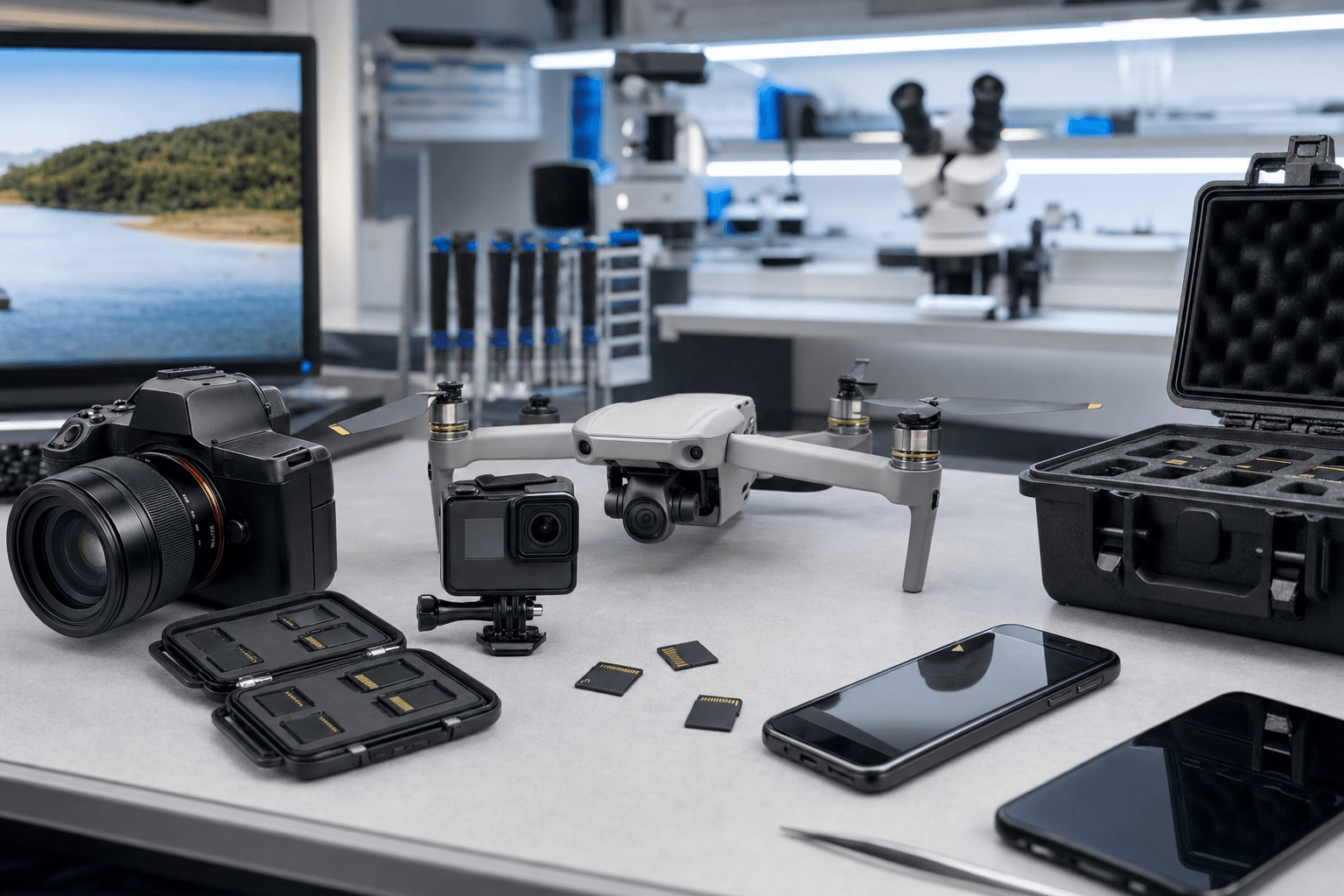
How to Prevent Accidental Formatting
Recovery is great, but prevention is better. Here's how to avoid ever needing to recover a formatted SD card.
Use the Write-Protect Switch
Full-size SD cards have a tiny physical switch on the left side. Slide it to the "lock" position after a shoot and it prevents any device from writing to, deleting from, or formatting the card. It won't stop a determined computer user (Windows can override it in some cases), but it prevents accidental formatting in cameras and readers.
Format in the Camera, Not the Computer
Always format your SD cards in the camera you'll use them in, not on your computer. Camera formats create the exact directory structure the camera expects, which reduces corruption. Computer formats sometimes create structures the camera doesn't like, leading to "Card Error" messages.
The 3-2-1 Backup Rule
Keep three copies of important data on two different types of media, with one copy offsite. For photographers, this means: import your photos to your computer immediately after a shoot (copy 1), back them up to an external drive or NAS (copy 2), and sync them to cloud storage like Google Drive, Backblaze, or Amazon Photos (copy 3). Only format the SD card after all three copies are confirmed.
Label Your Cards
If you shoot on multiple SD cards, label them. A simple "FULL" sticker or a colored rubber band tells you which cards have unimported photos. We've seen plenty of cases where a photographer grabbed the wrong card and formatted over a wedding shoot. Simple labeling prevents that.
Don't Remove the Card Mid-Write
Ejecting an SD card while the camera is saving a photo or while your computer is writing to it can corrupt the file system. This doesn't format the card, but it can make it unreadable, which leads to the same recovery process. Always wait for the activity light to stop, or use your operating system's "Safely Remove" option.
Additional Recovery Resources
If you're dealing with a different type of data loss on your SD card (not formatting, but accidental deletion), check out our guide on recovering deleted files from an SD card. For photo-specific recovery tips, see our post on photo recovery from SD cards. And if you're curious about how data recovery works across different device types, our pricing page breaks down costs by scenario and device.
If you need to recover data from a different device entirely, we've covered iPhone data recovery as well. Each device type has its own quirks, and the approach changes depending on what you're working with.
Formatted Your SD Card? We Can Help.
Whether it's a camera card, drone footage, or phone storage, our lab recovers data from formatted SD cards every week. Diagnostic, no data no charge.
Get a Free QuoteFrequently Asked Questions
Can you recover photos from a formatted SD card?
Yes, in the vast majority of cases. Our complete SD card photo recovery guide walks through the full process. When a camera formats an SD card, it performs a quick format that only erases the file directory, not the actual photo data. Your images stay on the card's NAND flash chips until new photos overwrite them. Using free tools like PhotoRec, you can scan the card (or an image of it) and recover the original files. The critical step is to stop using the card immediately after formatting. Every new photo you take risks overwriting recovered data.
How long after formatting can you still recover data?
If you haven't used the card since formatting, there's no time limit. Data on NAND flash memory doesn't degrade or disappear on its own. We've recovered photos from cards that were formatted months earlier and sat in a drawer. The only thing that destroys your data after formatting is writing new data to the card. Time itself is not the enemy. Continued use is.
Does formatting an SD card delete everything permanently?
A quick format does not permanently delete anything. It only wipes the file system index. A full format (where you specifically unchecked "Quick Format" in Windows) overwrites data with zeros and is much more destructive, but even then, some data may survive due to the way SD card controllers handle wear-leveling. For truly permanent deletion, you'd need specialized secure-erase tools that write over every cell multiple times.
Can I recover RAW photos (CR2, NEF, ARW) from a formatted card?
Yes, and RAW files actually recover better than JPEGs in many cases. RAW files have very distinctive file headers that recovery software identifies reliably. They're also larger, which means a single RAW file spans many sectors. Software tools can match headers to file boundaries accurately. PhotoRec supports Canon CR2/CR3, Nikon NEF, Sony ARW, Fuji RAF, and dozens of other RAW formats. Make sure your recovery tool explicitly lists your camera's RAW format in its supported types.
Is it safe to format my SD card in the camera before recovering data?
No. If you haven't recovered your data yet, do not format the card again. While multiple quick formats don't overwrite data (they just rewrite the file table), there's no reason to take the risk. Remove the card, create an image on your computer, and run recovery against the image. Only format the card after you've confirmed you have all your files back.
Can I recover data from a corrupted SD card that won't mount?
It depends on why the card won't mount. If the file system is corrupted but the card is physically functional (it appears in Disk Management on Windows or Disk Utility on Mac, even if it says "RAW" or "unformatted"), you can often image it and run recovery software. If the card doesn't appear in any device at all, the controller chip may have failed. That requires professional chip-off recovery where the NAND chips are desoldered and read directly.
What's the difference between recovering deleted files and recovering from a formatted card?
When you delete files from an SD card, the file system entries (names, dates, sizes) often remain partially intact, making it easier for software to reconstruct the original folder structure and filenames. When you format, the entire file system is replaced with a clean one, so all that metadata is gone. Recovery from a formatted card relies entirely on raw signature scanning, which recovers file contents but not original filenames or folder structure. The actual data recovery rates are similar for both scenarios, assuming the data hasn't been overwritten.
My SD card was formatted and then used for new photos. Can I still recover the old ones?
Potentially, yes. Some of them, at least. When new photos are written to a formatted card, they're placed at locations the controller chooses. Some of those locations will land on top of your old photos (destroying them), while others will land in previously unused areas. The result is a partial recovery: some old photos come back perfectly, others are gone, and some might be partially corrupted. The more new photos were taken, the less old data survives. It's always worth trying.
Need Help Recovering a Formatted SD Card?
Our lab handles formatted SD cards from cameras, drones, phones, and more. Diagnostic, no data no charge policy. We've been doing this for years.
Get a Free QuoteWhy files come back after formatting an SD card
If data comes back after formatting an SD card, the card is usually not behaving like a normal writable device. A standard quick format removes the file system records that point to the old photos or videos, but it does not always overwrite the actual content immediately. Recovery software can often find old files after a quick format because the image and video data still exists in unallocated space. That is normal.
What is not normal is formatting the card, copying new files, ejecting it, and then seeing the old files return while the new files disappear. That usually means the SD card has gone read-only at the controller level or has failing flash memory. The camera or computer may report that the format completed, but the card silently rejects the write. When you reconnect it, the previous directory structure appears again because nothing was actually changed on the NAND.
This failure is common with worn or counterfeit cards, but it can also happen to name-brand cards that have reached the end of their usable life. SD cards have internal controllers that manage bad blocks and wear leveling. When the controller decides the memory is no longer safe to write, it may lock the card into a read-only state. That behavior protects what remains, but it also means the card should not be trusted for future shoots.
If you need the old data, stop using the card and do not keep formatting it. Each attempted format or copy operation can make the file system harder to interpret, especially if the card sometimes accepts writes and sometimes does not. For photos and videos, the safest process is to image the card, then recover from the image rather than the original media. If the card is physically unstable, cracked, water-damaged, or intermittently detected, professional memory card recovery is the better option. MDRepairs can handle SD, microSD, CF, and camera card cases through our New Jersey lab or by mail-in service nationwide.
Why do old photos reappear after I format my SD card?
If the old photos reappear after formatting, the card may not be accepting new writes. The format command may look successful, but the controller can return the card to its previous state when it is reconnected. That is a sign the card is failing or locked read-only internally.
Can I keep using an SD card after files come back from a format?
No. Once an SD card shows old data after a format, it should be retired. Even if you can still read some files, new photos or videos may not save reliably. Copy off anything important, then use a new card for future recording.
How MDrepairs can help
Real cases like this come through our New Jersey lab every week. If you are dealing with one now, start here.
- Flash Drive & USB Data Recovery Chip-off recovery from snapped and unreadable USB drives. Learn more
- Data Recovery Services Every device and failure type, recovered in our New Jersey lab. Learn more
- Hard Drive Data Recovery Mechanical, firmware and logical HDD recovery on every brand. Learn more
- SSD Data Recovery Controller, NAND and firmware recovery for SATA, M.2 and NVMe SSDs. Learn more