A Professional Guide to Recovering Data from a Dead Hard Drive
In this article
You usually can recover data from a dead hard drive because the failure is almost always a broken component: heads, motor, PCB, or firmware, not the data itself, which still sits on the platters. The single most important move is to stop using the drive: power it down and do not run CHKDSK or recovery software on a physically failing drive.
- Clicking, beeping, or grinding: mechanical failure; power off now, it needs a cleanroom
- Spins but not detected, or shows 0 MB: firmware/PCB fault; data intact, needs lab tools (PC-3000)
- Either way, a lab images the drive first, then extracts: see professional hard drive data recovery
When a hard drive fails, your actions in the first few minutes can determine whether your data is recoverable or lost forever. As data recovery professionals, we've seen it all: the right moves lead to a full recovery, while common mistakes can turn a solvable problem into a permanent one.
The single most important step is to immediately stop using the drive. Power down the computer, unplug the device, and resist the urge to turn it back on to "just check one more time."
What to Do the Moment Your Hard Drive Fails
That moment of failure is critical. Whether it's an external drive that suddenly disconnects or an internal drive that causes your computer to freeze, your immediate response sets the stage for a successful recovery. The goal isn't to fix the drive - it's to prevent further damage to the delicate magnetic platters where your data is stored.
Each time you power on a physically failing drive, you risk catastrophic damage. If the read/write heads have failed, they can physically scrape across the platter surfaces, much like a phonograph needle digging into a vinyl record. We call this rotational scoring, and it physically grinds away the magnetic layer that holds your files, destroying them permanently.
Your Immediate Action Plan
To maximize the chances of a successful recovery, follow these steps precisely. The objective is to preserve the drive in its current state until it can be evaluated in a professional lab environment.
Power Down Completely: Do not simply restart. Perform a full shutdown of the computer. If the system is frozen, press and hold the power button. For an external drive, safely eject it if possible, then unplug both the power and data cables.
Physically Disconnect the Drive: If the failed drive is internal, leave the computer powered off. If it's an external USB or Thunderbolt drive, disconnect it from your machine.
Do Not Run Any Software: This is a common and costly mistake. It’s tempting to run utility software like CHKDSK or a downloadable recovery app. These tools are designed for logically damaged but physically healthy drives. On a failing drive, they can cause irreversible damage by forcing the weakened components to read bad sectors repeatedly.
The Professional Takeaway: The moment you hear clicking or grinding noises, or if your computer fails to recognize the drive, the only safe action is to power it down and leave it off.
What to Avoid at All Costs
The actions you don't take are just as important as the ones you do. Several common reactions can make professional recovery significantly more difficult, or even impossible.
Never shake, tap, or attempt to open the hard drive enclosure. The internal components are aligned with microscopic precision, and even a slight jolt can cause further damage. Opening the drive's casing outside of a certified cleanroom environment is even worse. The platters are so sensitive that a single speck of dust can cause a head crash and obliterate your data.
That is why MDRepairs - and any other legitimate professional data recovery service - uses certified clean-room environments. It is the only way to safely work on the internal components of a hard drive. By ceasing all activity, you provide our engineers with the best possible chance to recover your critical files.
How to Diagnose Your Dead Hard Drive's Symptoms
When a hard drive fails, it often provides clues about the nature of the problem. Learning to interpret these signals is the first step in understanding if your data is recoverable. The sounds it makes - or its silence - tell a story about what has gone wrong internally.
A common misconception is that all "dead" drives are the same. In reality, symptoms almost always point to one of four failure categories: mechanical, electrical, logical, or firmware. Each requires a completely different recovery methodology, which is why running generic software is so risky.
What Are the Symptoms Telling You?
Listen carefully. The first clues are often audible. Is the drive making unusual noises, or is it completely silent when it should be spinning?
Mechanical failures are the most severe and involve the physical breakdown of moving parts, such as the spindle motor or the read/write head assembly.
It is likely a mechanical issue if you hear:
- Clicking, Ticking, or Grinding: This is the infamous "click of death." It indicates the read/write heads are damaged or unable to locate the system track, causing them to repeatedly reset.
- Beeping or Buzzing: This typically points to a seized spindle motor. The drive is trying to spin the platters but cannot, causing the motor to emit a high-pitched sound.
- Complete Silence (No Spin): If the drive is not spinning at all, the motor may have failed, or the heads could be physically stuck to the platters (stiction), preventing any movement.
These are all signs of a critical physical failure. Continued power-on attempts will almost certainly cause further damage, including platter scoring.
If your hard drive is clicking, beeping, or grinding, stop immediately. Further power-on attempts will almost certainly cause more damage. This drive needs a professional evaluation in a Class 100 cleanroom environment.
Silent Failures: Logical and Electrical Issues
Unlike the audible drama of a mechanical failure, logical and electrical problems are often silent. A logical failure means the drive's hardware is functional, but the data has become inaccessible due to file system corruption, an accidental format, or a damaged partition table.
Electrical failures occur when a component on the printed circuit board (PCB) fails, often due to a power surge. This can prevent the drive from powering on or communicating with the computer.
Common signs of these non-mechanical issues include:
- The drive spins up, but the computer does not recognize it.
- The operating system prompts you to format the drive.
- Files and folders have disappeared or appear corrupted.
- Connecting the drive causes the computer to freeze or become unresponsive.
This decision tree can help you interpret the initial symptoms and choose the safest path forward.
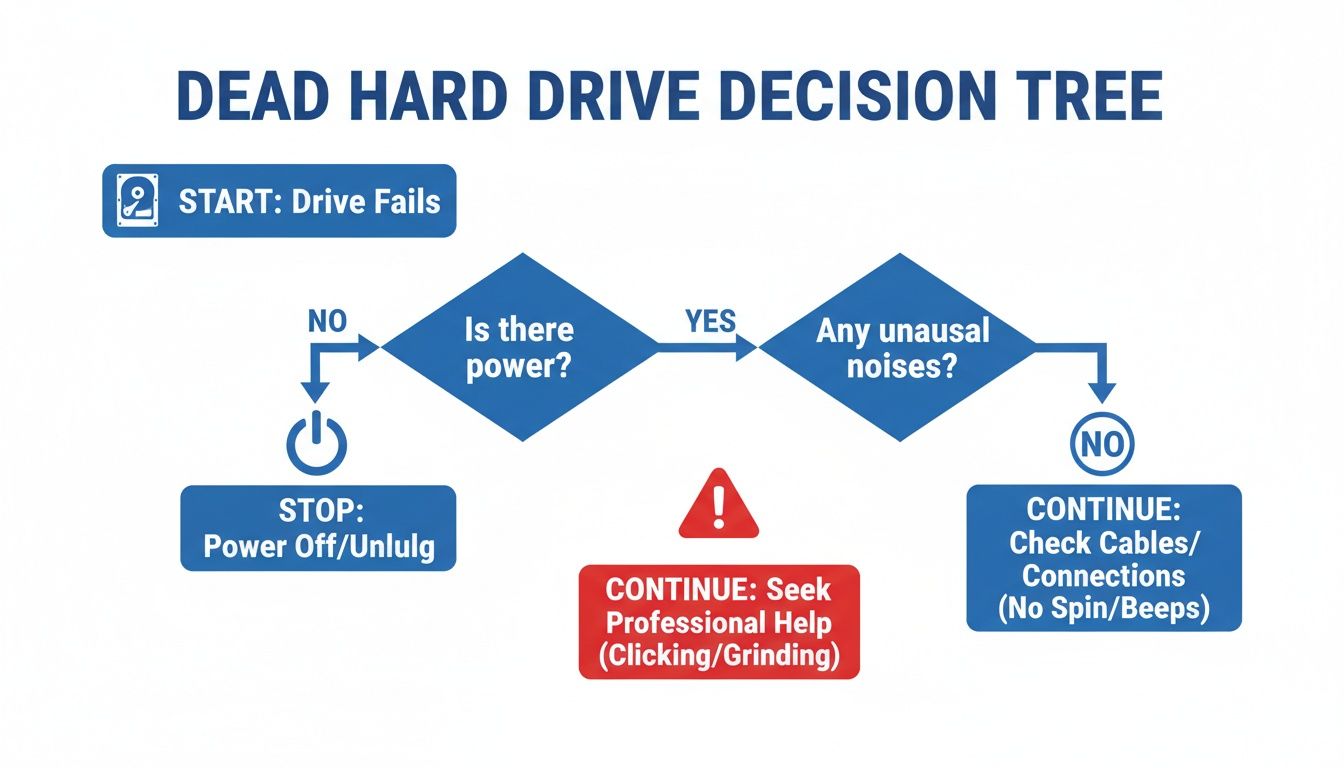
The takeaway is clear: if you hear physical noises, shut it down immediately. If it's a silent problem, you still must proceed with extreme caution to avoid exacerbating the issue.
The Hidden Culprit: Firmware Corruption
Firmware is the drive's embedded operating system. When this complex code becomes corrupted, the drive can become completely unresponsive, even if all physical components are in perfect condition.
Firmware issues are challenging to diagnose because they can mimic other failures. A drive with a firmware fault might not spin up, it could be detected with an incorrect size (e.g., 0 MB), or it may appear in the system with a garbled model name.
Resolving firmware corruption requires specialized laboratory tools like the PC-3000, which allow our engineers to access the drive's service area and manually repair the damaged code. This is a highly technical process that no consumer software can perform.
To clarify, this table breaks down the common symptoms we see in our lab and their typical causes.
Common Hard Drive Failure Symptoms and Their Meanings
Use this table to match your drive's symptoms to the likely cause and understand the best next step for recovery.
| Symptom | Likely Failure Type | What It Means For Your Data | Recommended Next Step |
|---|---|---|---|
| Clicking, grinding, or beeping | Mechanical | High risk of permanent loss; platters may be getting damaged. | Power down immediately. Do not use software. Send for professional evaluation. |
| No power, no spin, no sound | Electrical / Mechanical | Data is likely intact but inaccessible until the PCB or motor is repaired. | Stop. This requires lab-level diagnostics to determine the exact fault. |
| Drive spins but is not detected | Firmware / Electrical | Data is probably fine, but the drive can't "boot" to make it available. | Do not format. This needs specialized tools to repair the firmware or PCB. |
| Detected with wrong size (0 MB) | Firmware | Data is intact but unreadable due to corrupted system modules. | This is a classic sign of firmware failure. Requires professional lab tools. |
| Computer freezes when connected | Logical (Bad Sectors) | The drive has unreadable spots, causing the OS to hang. Data is at risk. | Power down. Repeated attempts can worsen sector damage. A pro can image the drive. |
| OS prompts to format drive | Logical (Corruption) | The file system is damaged. The data is still there but not organized. | Do NOT format. Use reputable data recovery software carefully or seek professional help. |
Remember, hard drive failure is not a question of if, but when. Backblaze's comprehensive Drive Stats report shows an average annualized failure rate of around 1.7% across hundreds of thousands of drives. Learning to spot these signs is critical.
By correctly identifying what your drive is trying to tell you, you can avoid making a bad situation worse. If you are unsure, a professional diagnostic is the only risk-free way to determine the problem.
When Is Data Recovery Software a Good Idea? (And When Is It a Disaster?)
We've seen it happen countless times: a user panics, downloads a data recovery program, and inadvertently turns a recoverable case into a permanent loss. Commercial software tools serve a very specific, narrow purpose: recovering from logical data loss on a physically healthy drive.
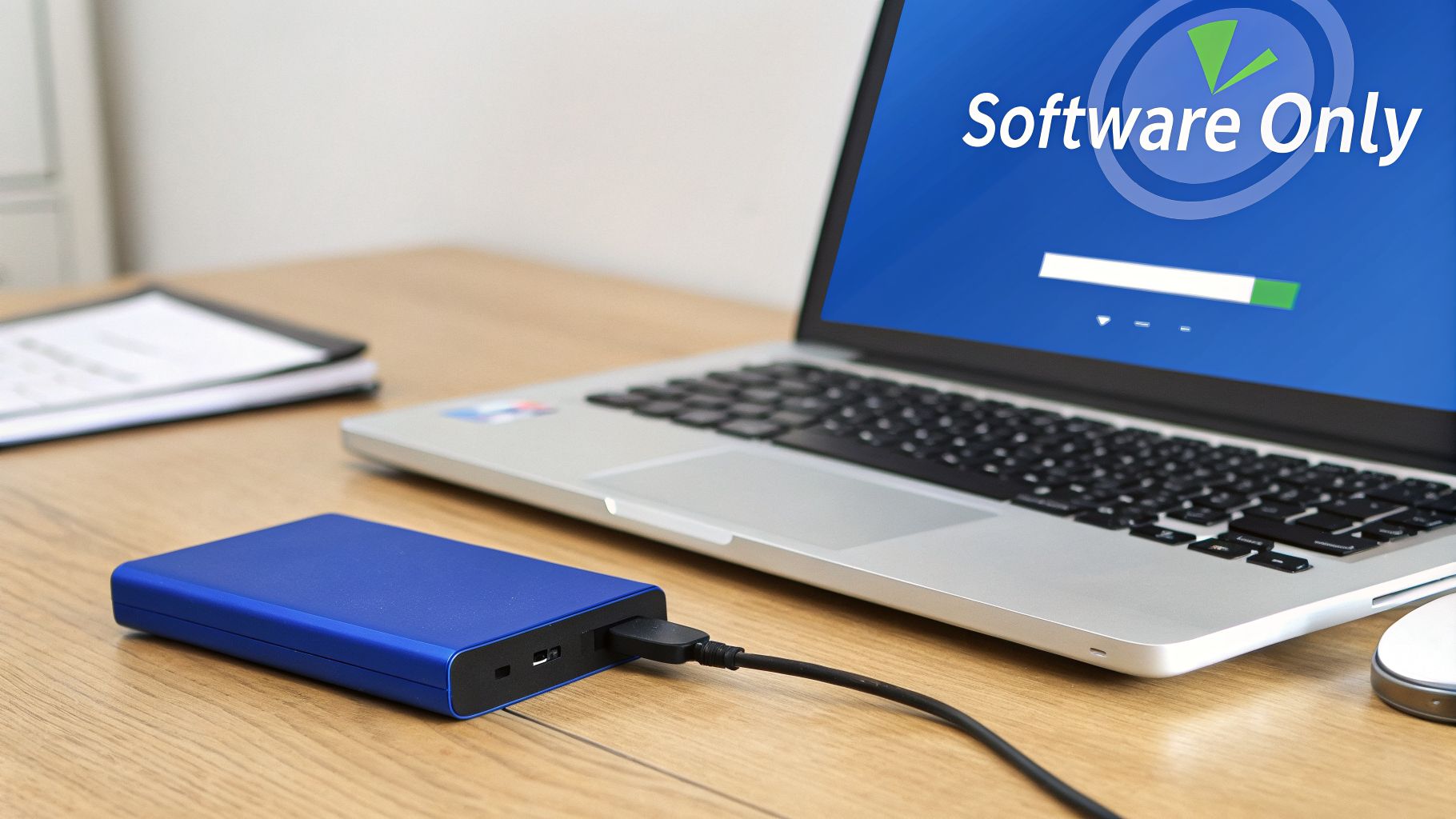
Understanding this distinction is crucial. Using software on a physically failing drive is one of the most destructive actions you can take.
The Green Light: Scenarios Where Software Might Work
Before attempting a software-based recovery, you must be confident that the drive is in perfect working order. This means it is detected correctly by your computer, sounds completely normal, and has not been subjected to any physical trauma.
If your drive meets these criteria, software may be a reasonable option for these situations:
- Accidental File Deletion: You emptied the Recycle Bin or used Shift + Delete.
- Accidental Formatting: You formatted the wrong partition, erasing the file system's index but leaving the raw data intact.
- RAW File System: The drive shows up as "RAW" or prompts for formatting, often due to minor file system corruption.
Even in these ideal scenarios, follow this golden rule: Never install or run recovery software on the source drive. The installation process writes new data, which can overwrite the very files you are trying to recover.
The Red Flags: When to Power Down Immediately
The real danger lies in misdiagnosing a physical failure as a logical one. Running a software scan on a mechanically failing drive is akin to forcing an engine with a broken piston to run at high RPMs. The resulting damage is swift, severe, and often irreversible.
Crucial Warning: If you hear any clicking, grinding, or beeping sounds, or if the drive is not detected by your computer's BIOS, stop. Unplug it immediately. Any further use is a gamble you will lose.
When software repeatedly attempts to read from a drive with failing read/write heads, you risk rotational scoring. This is when the heads physically crash into the platters, scraping off the magnetic material. No data recovery lab can recover data that has been physically destroyed.
Why Software Can't Fix Hardware Problems
Data recovery software is an application that communicates with the drive through the operating system. It has no ability to diagnose or bypass deep-level hardware faults.
A software program cannot:
- Repair a damaged read/write head assembly.
- Un-seize a stuck spindle motor.
- Rewrite corrupted firmware on the drive's controller.
- Read data from a physically scratched platter.
Instead, when the software encounters a bad sector, it tries to read it again and again. This intense, repeated effort generates heat and places extreme stress on the failing components, accelerating their degradation. A case that might have been a straightforward head swap in our cleanroom can quickly become unrecoverable due to platter damage caused by software.
If there is any possibility that your drive is suffering from a physical failure, the only safe move is a professional evaluation. Our nationwide mail-in diagnostics are designed for this exact situation, providing a clear, free consultation about the problem.
Your Three Options on a Dead Drive: DIY, Software, or a Lab
Every dead-drive situation ultimately comes down to three paths. The right one depends entirely on which failure category you are in, and picking wrong is how recoverable cases become permanent losses. Here is the honest comparison we walk clients through on the phone.
| Option | What it can fix | What it cannot fix | Risk on a dead drive |
|---|---|---|---|
| DIY (cables, ports, enclosures) | Bad cable, dead USB port, failed enclosure electronics around a healthy drive | Anything inside the drive: heads, motor, PCB, firmware | Low, as long as you stop at swapping connections and never open the drive |
| Recovery software | Deleted files, accidental formatting, RAW file system on a drive that is physically healthy | Any drive that clicks, beeps, is not detected, or shows the wrong capacity | High: forcing a failing drive to read can scratch platters and destroy the data permanently |
| Professional lab | Mechanical, electrical, and firmware failures; the drive is imaged first, then data is extracted from the copy | Severely scored platters or overwritten data (nobody can fix those) | None to the data: work happens on a clone in a cleanroom, under no data, no charge terms |
The pattern to remember: software works on healthy drives with logical problems, hardware problems need hardware answers. If you are not certain which category you are in, that uncertainty is itself the signal to stop and ask before powering the drive on again.
Inside a Professional Data Recovery Lab
When a drive containing your critical files fails, sending it to a laboratory can feel daunting. At a professional facility like MDRepairs, we utilize highly specialized tools, controlled environments, and established protocols designed for one purpose: to safely extract data from failed storage devices, including HDDs, SSDs, RAID systems, and smartphones.
Upon arrival at our lab, your drive undergoes a thorough evaluation by a data recovery engineer. This initial diagnostic is backed by our no data, no charge policy. We focus on identifying the precise point of failure - mechanical, electrical, firmware, or logical - as this determines the correct recovery strategy.
The Cleanroom: A Non-Negotiable Requirement
If our initial diagnosis reveals any signs of internal damage, such as clicking or grinding, the drive is immediately moved to our Class 100 cleanroom. This is not an optional feature; it is an absolute necessity for any internal work.
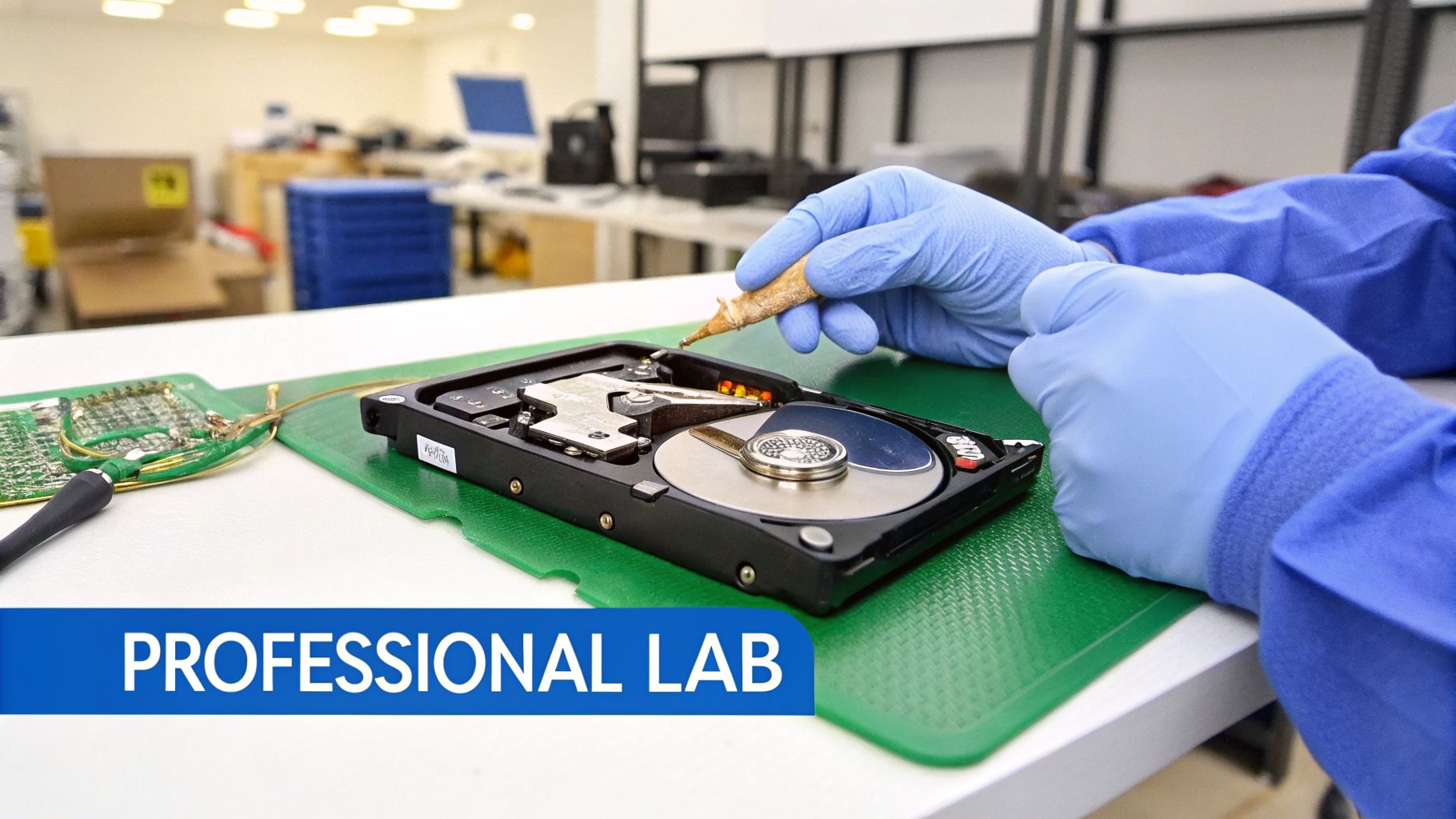
Inside a hard drive, the read/write heads float nanometers above the rapidly spinning platters. In this microscopic environment, a single dust particle is a massive obstacle. Opening a drive in a normal room allows contaminants to settle on the platters, which will cause a catastrophic head crash and permanently destroy data.
Our certified cleanroom maintains an atmosphere with fewer than 100 particles larger than 0.5 microns per cubic foot, creating a safe environment for delicate procedures:
- Head Stack Assembly (HSA) Replacement: If the read/write heads have failed, we carefully replace the entire assembly with a matching one from a compatible donor drive.
- Platter Transplant: For drives with a seized motor, we can transplant the data-bearing platters into a functional donor chassis.
- Stiction Remediation: We can safely release heads that have become physically stuck to the platter surface without causing further damage.
Attempting these repairs outside of a cleanroom is the primary reason why DIY recovery attempts on physically failed drives almost always result in permanent data loss.
Firmware-Level Tools for Complex Failures
Many "dead" drives are physically intact but are rendered inaccessible by their own corrupted operating system - the firmware. This firmware lives in a protected "service area" on the platters. A glitch here can prevent the drive from spinning up, cause it to report an incorrect size (0 MB), or make it disappear from the system.
Lab-grade tools like the PC-3000 from ACE Lab are essential for these cases. This hardware and software suite allows our engineers to communicate directly with the drive's service area, bypassing the standard interface.
This gives us the ability to:
- Diagnose and repair specific corrupted firmware modules.
- Reset internal error logs that prevent the drive from initializing.
- Selectively disable a single failing head to clone data from the remaining healthy surfaces.
Consumer software can only interact with what the operating system can see. We work at a much deeper level to recover data even when the drive appears completely unresponsive.
The Golden Rule: Always Image the Drive First
After stabilizing the drive through mechanical or firmware repair, we never perform the recovery directly from your original media. The first and most critical step is to create a sector-by-sector clone of the drive using dedicated hardware imagers. These devices are designed to handle read errors and bad sectors that would cause a standard computer to fail.
By working from an exact clone, we preserve the original state of your failing drive. This ensures that no matter what happens during data extraction, the source remains untouched, maximizing the chances of a complete recovery.
This safety-first protocol is a cornerstone of professional data recovery. Once a stable clone is secured, our engineers work to reconstruct the file system and extract your data. We then provide a file list for your review before transferring the recovered data to a new, healthy external drive. Whether you need data recovery services in New York or are mailing a drive from across the country, your data is handled with security and precision.
What to Expect: Data Recovery Costs, Timelines, and Policies
Facing data loss is stressful enough without adding financial uncertainty. At MDRepairs, we believe in transparent pricing and clear policies. The cost of recovery is determined by the nature of the failure, not the amount of data.
Our pricing is tiered based on the complexity of the engineering work required.
What Determines the Cost of Recovery?
It's a common misconception that recovery cost is based on the capacity of the drive or the amount of data. In reality, the cost is dictated by the type of failure and the resources required to gain access to the data. Recovering a single critical file from a drive with a failed head assembly requires the same complex, cleanroom-based repair as recovering several terabytes.
Here is a breakdown of what influences the final quote:
- Logical Issues: These are the most straightforward and affordable cases, covering accidental deletion, formatting, or minor file system corruption on a healthy drive.
- Electrical Damage: A failed PCB often requires sourcing a compatible board and transferring a unique ROM chip from the patient drive to the donor - a delicate but non-invasive procedure.
- Firmware Corruption: This requires specialized hardware like the PC-3000 to manually repair the drive's internal operating code. This is a lab-only service.
- Mechanical Failure: This is the most complex and resource-intensive tier. It requires opening the drive in a Class 100 cleanroom to perform procedures like replacing the read/write heads, which involves sourcing a compatible donor drive and performing microscopic repairs.
Because it's impossible to diagnose the issue without hands-on lab work, we start every case with a free phone consult. This allows us to provide a firm, flat-rate quote before any work begins.
Our "No Data, No Charge" Guarantee
We operate on a simple, risk-free principle: our no data, no charge guarantee. If we are unable to recover the specific data you need, you do not pay the recovery fee. This policy removes the financial risk from your decision, allowing you to have your drive professionally evaluated with confidence.
This promise is about recovering your critical data. Before completing the service, you will receive a file list to review and verify that your important documents, photos, or project files have been successfully recovered.
A Realistic Look at Turnaround Times
We understand the urgency of data loss. Our service levels are designed to meet different needs and timelines.
For our nationwide mail-in data recovery services, you can generally expect:
- Standard Service: Most recoveries are completed within 5 to 10 business days following your approval of the quote.
- Rush Service: For time-critical situations, our optional rush service prioritizes your case. Our engineers work on it immediately, including during extended hours, often reducing the recovery time to 2 to 4 business days.
These timelines account for diagnostics, donor parts sourcing if needed, cleanroom work, and final data verification. Whether you are using our data recovery services in California via mail-in or are located elsewhere in the U.S., we provide regular updates throughout the process.
Frequently Asked Questions
When a hard drive fails, it raises many urgent questions. Based on our experience with thousands of cases from across the country, here are clear, professional answers to the most common concerns.
If the Drive Is Dead, Is My Data Gone Forever?
In the vast majority of cases, the answer is no. A "dead" drive typically means a physical component - like the read/write heads or the circuit board - has failed, preventing access to the data. The data itself usually remains intact on the internal magnetic platters.
Professional data recovery labs like ours are equipped with the technology to bypass or repair these failed components in a controlled, sterile environment. We work directly at the hardware level to access the raw data and reconstruct your files. As long as the platters have not been severely scored by improper handling, the success rate for professional recovery is very high.
Why Can't I Just Run a Recovery Program?
This is a critical distinction. Data recovery software is designed exclusively for logical issues on a physically healthy drive, such as recovering accidentally deleted files. It cannot address hardware failures.
Running software on a drive that is clicking, grinding, or not being detected is one of the most damaging things you can do. The software forces the damaged components to work, which can cause the read/write heads to crash into the platters. This physically scrapes away the magnetic layer where your data is stored, turning a recoverable situation into a permanent loss.
Any sign of a physical problem - unusual noises, failure to be detected - is a firm stop sign. The only safe action is to power it down to maximize the chances of a full recovery.
What Is This Going to Cost Me?
The cost of professional data recovery depends on the type of failure, not the amount of data. A simple logical recovery is much less complex than a mechanical failure requiring cleanroom intervention.
The cost tiers are based on the work required:
- Logical Recovery: The most affordable tier, for recovering deleted or formatted data from a healthy drive.
- Firmware/Electrical Recovery: A mid-range tier for repairing the PCB or using specialized tools to fix the drive's internal code.
- Mechanical Recovery: The most complex tier, requiring cleanroom work to replace internal components like the read/write heads, which also involves sourcing a matching donor drive.
To eliminate uncertainty, we start every case with a free phone consult. Our engineers determine the exact failure and provide a firm, upfront quote. With our no data, no charge policy, you only pay if we recover the data you need.
What Is a Cleanroom, and Why Is It So Important?
A cleanroom is a controlled environment with an advanced air filtration system that removes microscopic contaminants like dust and skin particles.
Inside a hard drive, the read/write heads float nanometers above platters spinning at thousands of RPM. If a drive is opened in a normal environment, a single dust particle landing on a platter will be struck by the head, causing a catastrophic crash that gouges the surface and permanently destroys data.
Any repair that requires opening the drive enclosure - such as a head replacement or platter swap - must be performed in a certified cleanroom. It is an absolute, non-negotiable requirement for professional and safe data recovery.
If your hard drive has failed, the safest and most effective next step is to get a professional evaluation. At MDRepairs, our expert engineers are ready to diagnose any failure, from simple logical issues to complex mechanical repairs in our certified cleanroom. Our nationwide mail-in service makes it easy to get help from anywhere in the U.S.
Start with a free phone consult today: get your free quote.
How to recover data from a dead hard drive safely
To recover data from a dead hard drive safely, first decide what dead means. A drive that is not mounting may still spin normally and identify to the computer. That can be a file system, partition, or firmware issue. A drive that clicks, beeps, spins down, smells burned, or does not power on is a hardware case. The recovery path is different, and using the wrong method can reduce the chance of getting the files back.
If the drive is detected with the correct model and capacity, do not scan it directly for hours. The safer approach is to clone or image the drive to another storage device first, then run recovery software against the clone. This protects the original from extra wear and gives you a second chance if the file system repair goes badly. If the drive disconnects, hangs during reads, or shows many bad sectors, stop the software process. Unstable drives need controlled imaging tools that can skip damaged areas, manage timeouts, and return to weak zones later.
If the drive is not detected, do not open it at home. Hard drives require a clean environment when the internal head and platter assembly is exposed. Dust, fingerprints, and an incorrect head swap can damage the media surface. Also avoid freezer tricks, tapping the drive, board swaps without ROM transfer, or repeated power cycling. Those shortcuts may produce a brief change, but they often create more damage than they solve.
In a lab, the goal is to stabilize the drive, repair the access path, image the media, then rebuild files from the image. That may involve electronics repair, firmware work, head replacement, platter-safe cleaning, or logical reconstruction. MDRepairs performs dead hard drive recovery in our New Jersey lab and accepts mail-in cases nationwide. If the files matter, power the drive off, keep the original cable and enclosure if it is external, and get advice before writing anything to it.
Frequently Asked Questions
Can you retrieve data from a dead hard drive?
Often yes, depending on the failure. If the platters are intact, a lab may be able to repair electronics, work around firmware issues, replace failed heads, image the drive, and rebuild the file system. Severe platter damage or prior repair attempts can reduce the chances.
How can I recover files from a dead hard drive at home?
Only try at home if the drive is detected normally and sounds healthy. In that case, clone it first and recover from the clone. If the drive clicks, beeps, will not spin, disappears, or was dropped, stop using it and send it to a recovery lab.
Every Way a Failing Drive Gets Recovered
Clicking, not spinning, not detected, or dropped after a fall, each failure needs a different bench process, from cleanroom head swaps to firmware repair on PC-3000 hardware. If the steps in this guide did not bring the drive back, the fix is physical, not software. See the full range of data recovery services we handle in the lab, or start an insured mail-in case. The diagnostic is $100, applied toward recovery. No data, no charge.
How MDrepairs can help
Real cases like this come through our New Jersey lab every week. If you are dealing with one now, start here.